|
|
| ||
|
|
| ||
|
|
| ||
|
| |||
|
|
The magnifying glass enables viewing parts in detail.
| ||
|
|
The animation (rotate part) can be turned on/off.
| ||
|
|
You can use the Show texts and classes command to show and hide them in the 3D view. Further information on creating texts and classes can be found under Section 5.12.5, “Classify connection points ”. | ||
|
| |||
|
|
| ||
|
|
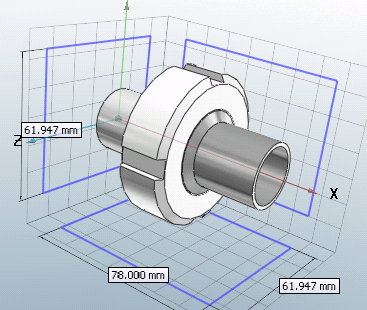
Show dimensions [Show Dimensionings] See Section 2.1.7.6.5, “ Show Dimensionings ” in PARTsolutions - User. Views that contain a dimension can be recognized in the 3D toolbar by a corresponding icon with a dimension line . . | ||
|
| |||
|
|
Perspective projection, Front view (Z), Rear view (-Z), Left view (-X), Right view (X), Top view (Y), Bottom view (-Y), Isometric view If dimensions have been created for a view by the manufacturer and Show dimensions [Show Dimensionings]
| ||
|
|
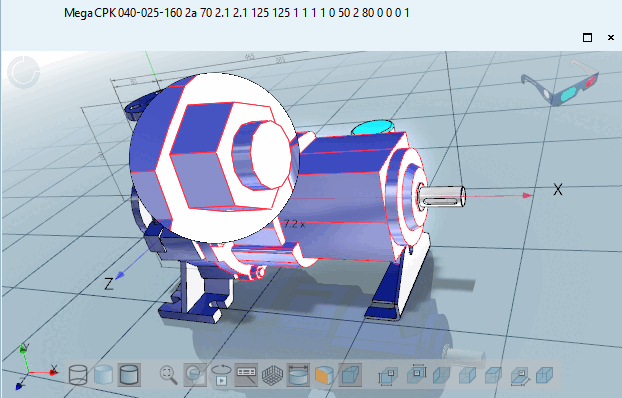
Display of the part in plastic 3D preview. The three dimensional effect only takes place when using red/cyan glasses! The selected part is displayed in alignment to enhance the three-dimensional effect. The background is automatically darkened. The red/cyan effect option can be used regardless of the display mode (Lines [Lines], Hidden edges [Hidden lines], Shaded, etc.). | ||
|
|
Display auxiliary geometry [Show auxiliary geometry] Displays an auxiliary geometry which, for example, illustrates a defined space similar to a disturbance space, which is required for movement, for example. The auxiliary geometry is created and controlled via classifications. | ||
|
|
Display control limits [Show rule limits] When enabled, all control limits for an assembly are displayed. | ||
|
|
Translations and Rotations Animate [Animate translations and rotations] Clicking the button starts a simulation of the moving components. |





![[Note]](https://webapi.partcommunity.com/service/help/latest/pages/en/partwarehouse/doc/images/note.png)