

The measurement dialog [Measure dialog] is divided into the fields Element 1, Element 2 and Result and Fixings [Constraints].
When you execute the "Measure" [Measure]command, the mouse pointer in the 3D view displays an object-specific geometry icon that indicates the type of element it is currently touching.
After you have clicked on two drawing elements (surface, edge, hole, etc.) in succession within the 3D preview [Preview 3D], an icon [Symbol] appears in the Element 1 and Element 2 fields.
Hier ein Überblick über die möglichen Geometriesymbole:
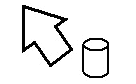
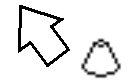
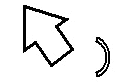
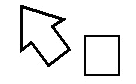
![[Note]](https://webapi.partcommunity.com/service/help/latest/pages/en/partwarehouse/doc/images/note.png) | Note |
|---|---|
The quickest way to determine the dimensions of a component is in the context menu of the 3D window via the menu item Measurement grid [Measuring grid]. See also Section 7.7.3, “Toolbar Buttons”. | |
In the following example, two opposite surfaces are clicked.
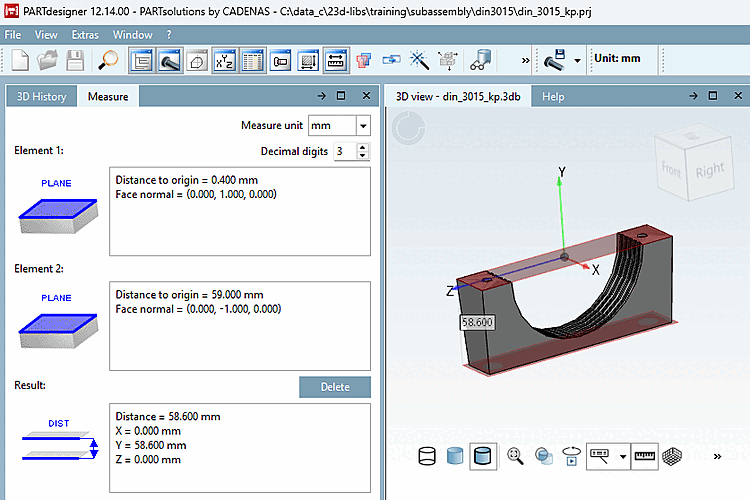
The two surfaces are 58,600 mm apart, which is shown as an icon in the Result field. The distance ( Distance = 58,600 mm) appears to the right of it.