
 |
The part comparison window appears as docking at the right side. So you can always see the result list together with the compare view.
Simply add parts with Drag&Drop.
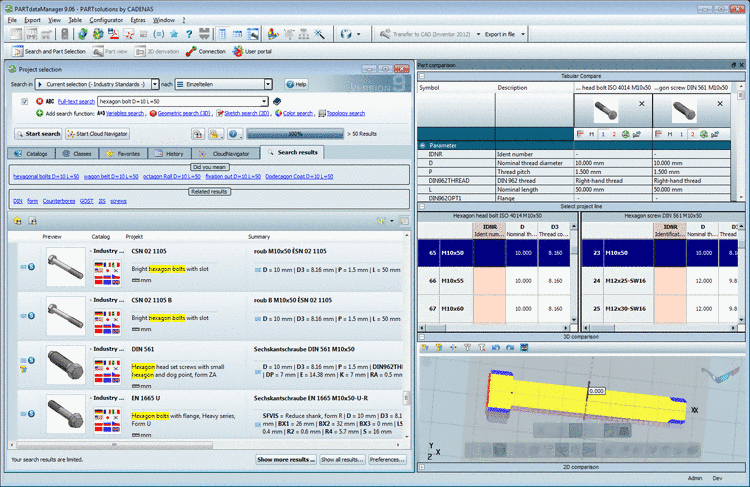
Starting and actions out of the search results
When you move the mouse over a result line buttons are displayed. The number of the displayed buttons depends on the context. (Adding of parts via index tree context menu commands and via search results context menu commands is possible in addition as usual.)
The Part comparison can either be used as docking or as separated dialog box. In order to move the part comparison click on the title bar with pressed mouse button.
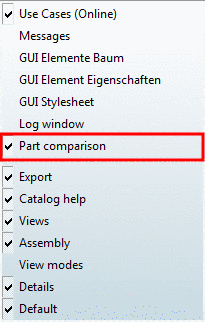
You can switch on and off the Part comparison via context menu anytime.
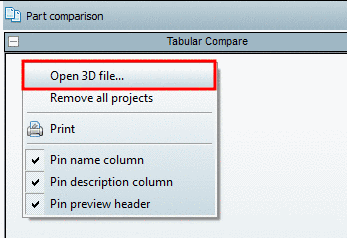
In this way you can also load own parts anytime.
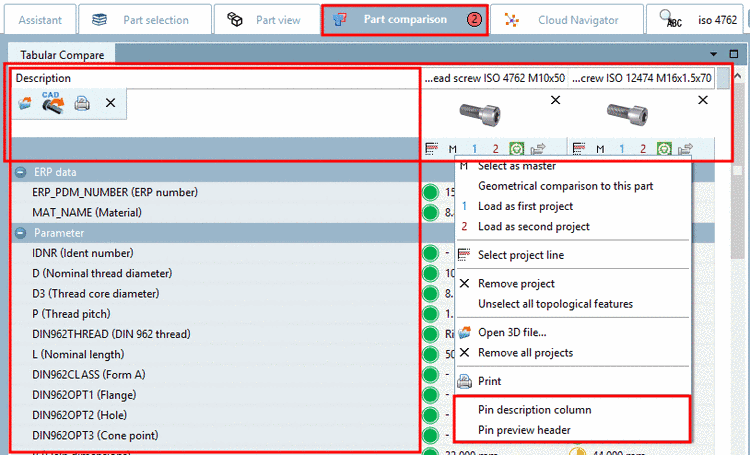
Pin name column | Pin description column | Pin preview header
In order to keep in view the important during vertical and horizontal scrolling, it possibly makes sense to fix the columns "Symbol" and/or "Description" [horizontal scrolling] and/or the complete preview line [vertical scrolling].
In the Tabular Compare section call the context menu and activate the desired option.
When you move the mouse over a preview image, an enlargement appears. (see figure above).[57]
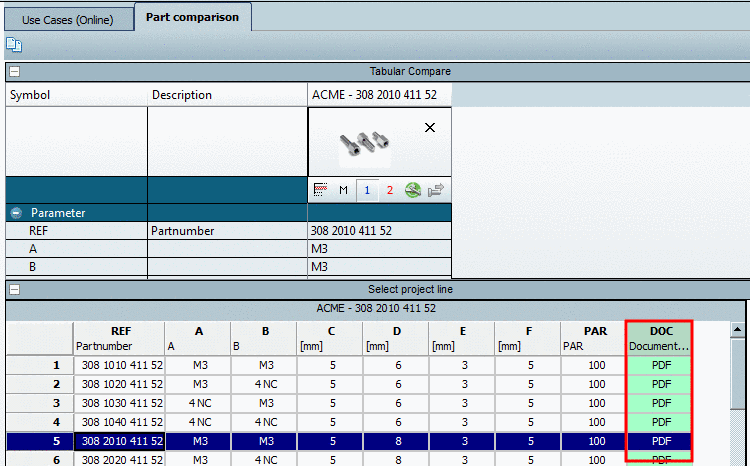
Document links in part comparison
As of v9.06 the document links also work in the part comparison.
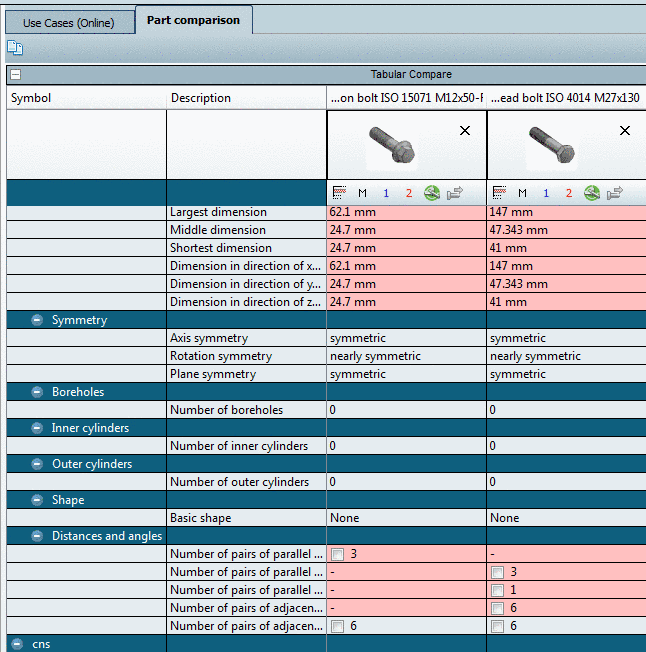
Now in the part comparison the topology attributes are grouped in categories. Each single section can be closed or expanded via plus/minus sign.
The state of categories is saved and displayed again after a PARTdataManager new start.


You can find details under Section 3.1.6.10, “ Part comparison ” in PARTsolutions - User manual.
[57] You can configure the size of the enlargement under psolopt.cfg, section [PARTCOMPARESETTINGS], key PreviewImageSize. Default is 50.