

You will find Download the sample files for this tutorial
zip_training_<version>.<build_no>.zip> training > update_manager.For text and illustrations, the Used SalesOffline with role "ecat" from the demo database ("Classic" red/green display). Settings in the Configuration File
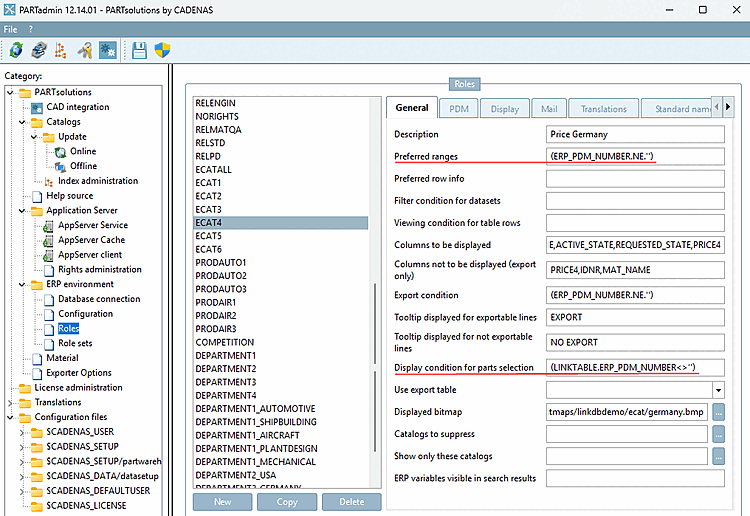
plinkgroups.cfg> Block [ECAT4] ("Germany"):[ECAT4] BUTTONS=ADDTODB,BACKTOMGR,CHANGEGROUP,FILTERBUTTON,LEGEND,LINKMGR,LOGIN,MAIL NB= SHORTNB= LINA=IF ((CONTAINS('$LINA.','$CATALOG_NAME.')).OR.('$CATALOG_NAME.'.EQ.'norm'))THEN LINA='$LINA.' ELSE LINA=UCASE('$CATALOG_NAME.')//' - $LINA.' ENDIF
DESC=Price Germany
PREFRANGE=(ERP_PDM_NUMBER.NE.'')
CONDITION=
CONDITIONCLASS=
TABRESTRICTION=
VARSUSED=ERP_PDM_NUMBER,MAT_NAME,ACTIVE_STATE,REQUESTED_STATE,PRICE4
VARSHIDDEN=PRICE4,IDNR,MAT_NAME
EXPORTRESTRICTION=(ERP_PDM_NUMBER.NE.'')
TOOLTIPTEXTEXPORTON=EXPORT
TOOLTIPTEXTEXPORTOFF=NO EXPORT
CONDITIONTREE=(LINKTABLE.ERP_PDM_NUMBER<>'')
EXPPRJTAB=
IMAGE=$(CADENAS_SETUP)/bitmaps/linkdbdemo/ecat/germany.bmp
USEBUTTONS=1
TEMPLATE=
SENDTO=
SUBJECT=
SERVER=
ISHTML=0
HIDELIST=
PDM_COLUMNS=
PDM_DOCVIEW_INFO=
PDM_DELETE=0
PDM_COLUMN_DESCRIPTIONS=
LINA='$LINA.' ELSE LINA=UCASE('$CATALOG_NAME.')//' - $LINA.' ENDIF
DESC=Price Germany
PREFRANGE=(ERP_PDM_NUMBER.NE.'')
CONDITION=
CONDITIONCLASS=
TABRESTRICTION=
VARSUSED=ERP_PDM_NUMBER,MAT_NAME,ACTIVE_STATE,REQUESTED_STATE,PRICE4
VARSHIDDEN=PRICE4,IDNR,MAT_NAME
EXPORTRESTRICTION=(ERP_PDM_NUMBER.NE.'')
TOOLTIPTEXTEXPORTON=EXPORT
TOOLTIPTEXTEXPORTOFF=NO EXPORT
CONDITIONTREE=(LINKTABLE.ERP_PDM_NUMBER<>'')
EXPPRJTAB=
IMAGE=$(CADENAS_SETUP)/bitmaps/linkdbdemo/ecat/germany.bmp
USEBUTTONS=1
TEMPLATE=
SENDTO=
SUBJECT=
SERVER=
ISHTML=0
HIDELIST=
PDM_COLUMNS=
PDM_DOCVIEW_INFO=
PDM_DELETE=0
PDM_COLUMN_DESCRIPTIONS=PARTadmin Settings > ERP Environment [ERP environment] > Roles:
Directories containing ERP_PDM_NUMBER display the green bar.
The status indicator in the 3Dfindit attribute table will turn green if an ERP_PDM_NUMBER is present .
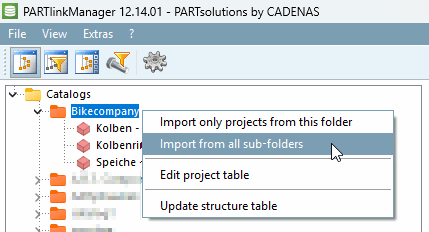
Import all projects from "Bikecompany" into PARTlinkManager.
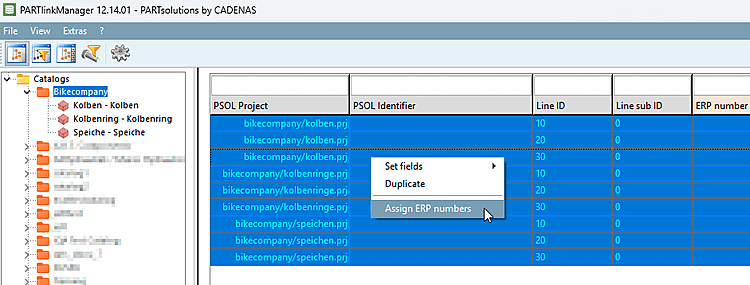
Assign ERP numbers to each row . [79]
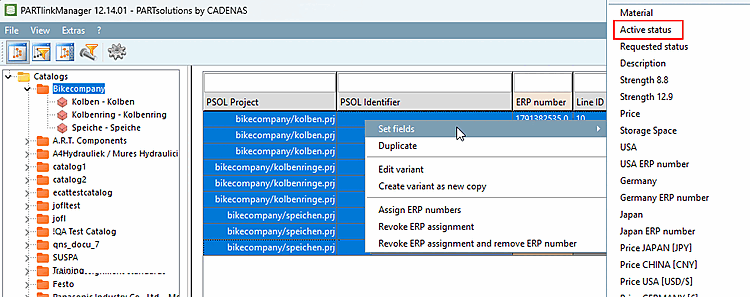
Select all records and click " Assign ERP Numbers [Assign ERP numbers]" [Assign ERP numbers] in the context menu.
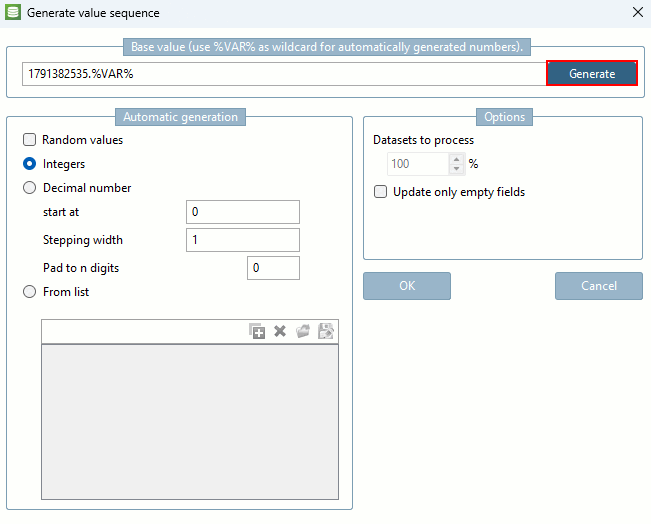
The " Generate Value Sequence [Generate value sequence]" dialog box opens.
Click , and then confirm by clicking .
Select all records again and click Set Fields [Set fields] -> Current Status [Active status] in the context menu.
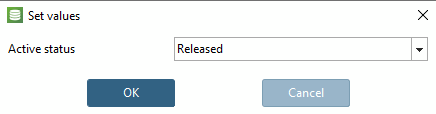
The " Set Values [Set values]" dialog box opens.
Select " Shared [Released] " from the list box and confirm by clicking .
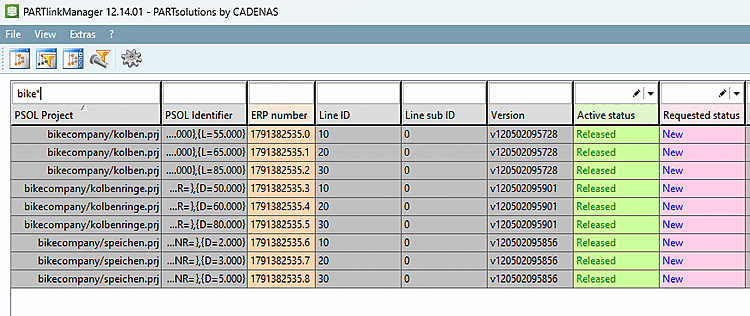
The PARTlinkManager now displays a small, but realistic initial scenario. Based on this data, the functions of the Update Manager [Update manager] will be explained in the following sections.
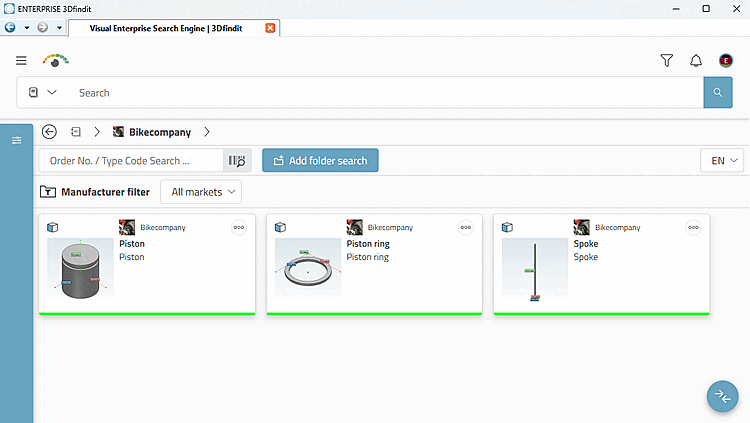
Open 3Dfindit and select the "Bikecompany" catalog.
Open the "Piston," "Piston Ring," and "Spokes" projects.
![PARTadmin -> Catalog Update [Catalog update] -> Offline [Offline]](https://webapi.partcommunity.com/service/help/latest/pages/en/partwarehouse/doc/resources/img/img_4f3b4327ed9d476d8943eec94cb165c0.png)
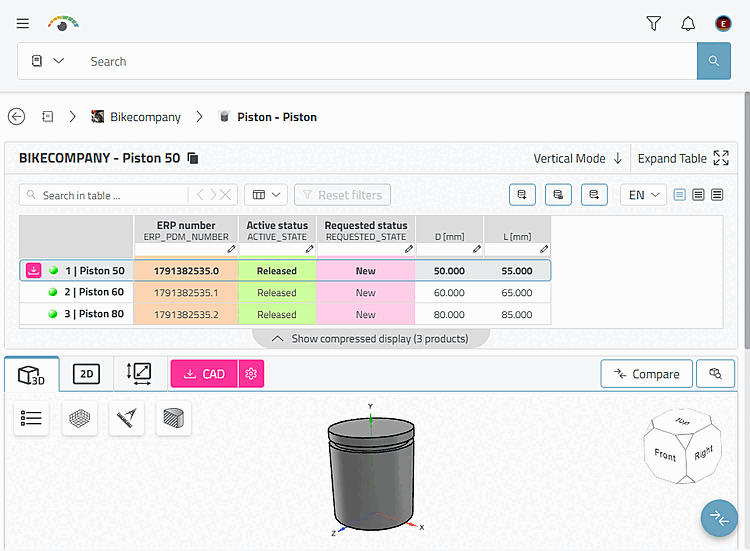
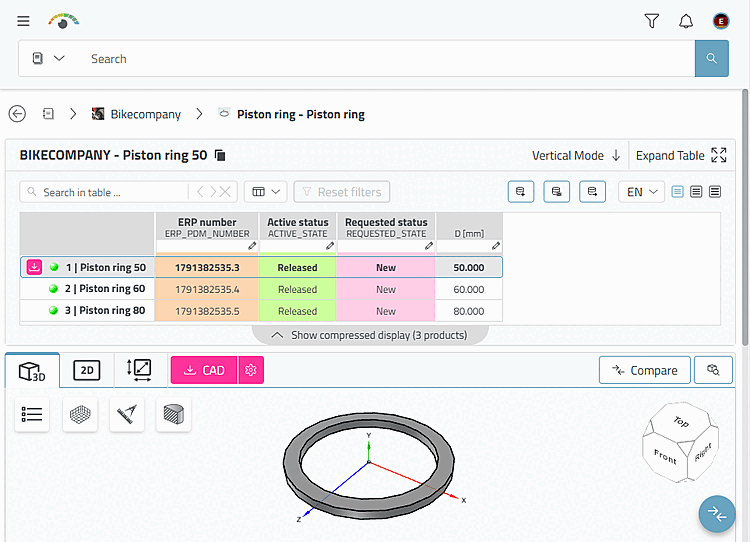
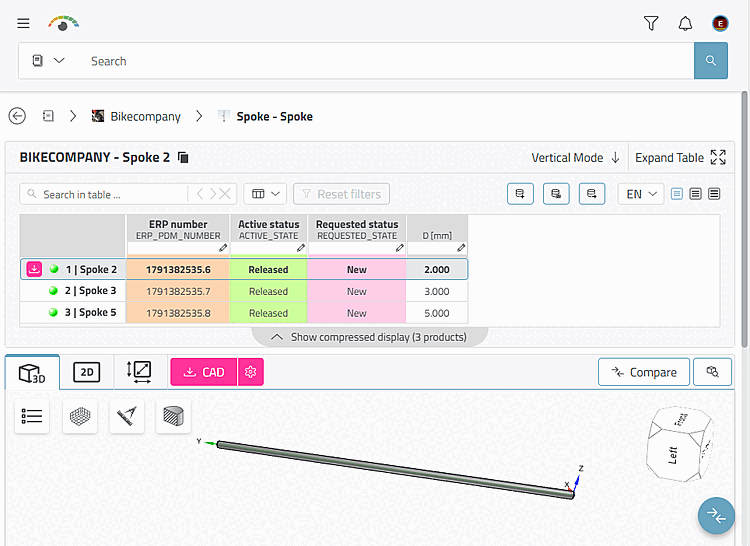
In the next section, you will perform a catalog update.
[79] You can do this in 3Dfindit using Add Link Database [Add to link database] or as shown here in the
PARTlinkManager (which
faster).
Link Database [Add to link database] or as shown here in the
PARTlinkManager (which
faster).