

Formulas can also be displayed in table form. This makes editing long and/or complicated algorithms much faster.
You have the option of creating a completely new algorithm (either in the Characteristics table [Algorithm-Table] or Characteristics algorithm [Attribute algorithm] window) or editing the existing one.
Call up the table of characteristics [Algorithm-Table] by clicking on the button.
![[Tip]](https://webapi.partcommunity.com/service/help/latest/pages/en/ecatalogsolutions/doc/images/tip.png) | Tip |
|---|---|
For very large tables, you can use the filter function directly under the heading to restrict the view. | |
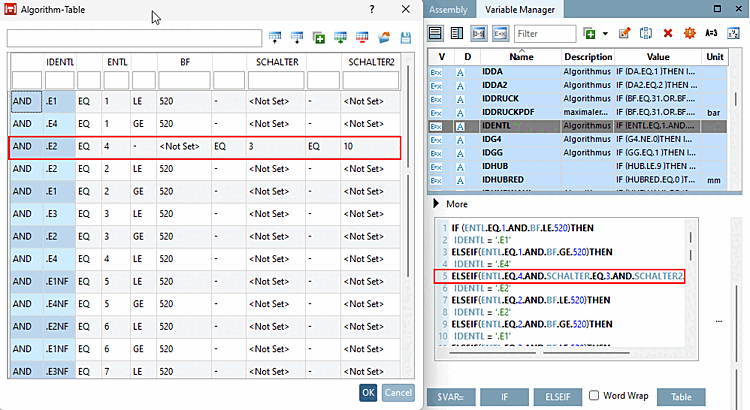
Example (lines marked in red in the figure above)
If ENTL equals 4 and SWITCH equals 3 and SWITCH2 equals 10, then IDENTL equals E2.
The algorithm contains only one IF/ELSEIF/ELSE block. IF is mandatory.
Each IF or ELSEIF only uses AND or OR for the entire condition. A mixture of OR and AND is not permitted!
The conditions use EQ (equal), NEQ (unequal), LT (less), LE (less equal), GT (greater), GE (greater equal) and have one side as a variable and the other as a constant value.
LT, LE, GT, GE are either used for a single value or as a pair for an upper/lower limit.
The assigned value is a constant number or a constant string or a single variable (subforms are currently not supported)
If the algorithm cannot be parsed, a message appears instead of the dialog.
You have various options for editing the table. Basically, you can double-click in each cell to edit it. In addition, some functions from the table module are available to you:


