Insert N-Corner [Insert N-sided polygon]
Create an N-corner using the center point [Center point], radius [Radius] and starting angle [Start angle].
Select center point [Choose center point] and select radius [Choose radius]:
Click on the desired center point (not visible!) and drag the N-corner with the cursor.
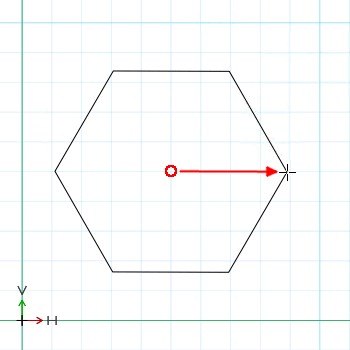
A corner of the polygon will lie at the cursor position and thus determine the start angle [Start angle] (which you can change later in the Edit element dialog). If the point is horizontal, the start angle [Start angle] is 0°.
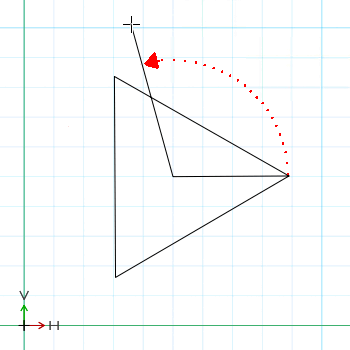
Moving the mouse pointer in a circle around the center point changes the number of corners.
The smaller the angle between the auxiliary lines, the greater the number of corners.
Fix the number of corners with a mouse click.
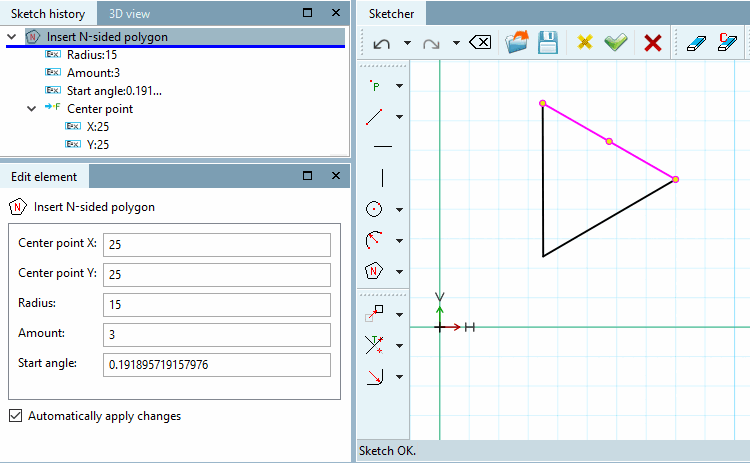
-> The individual values of the N-corner are displayed in the Edit element docking window and can be adjusted if necessary.
![[Note]](https://webapi.partcommunity.com/service/help/latest/pages/en/ecatalogsolutions/doc/images/note.png)
![Snap onto the grid [Snap to grid]](https://webapi.partcommunity.com/service/help/latest/pages/en/ecatalogsolutions/doc/resources/img/img_55777b1ea4c14f29a2a22a64bb6024f8.png)
!["Scalar parameters [Scalar parameters]" activated](https://webapi.partcommunity.com/service/help/latest/pages/en/ecatalogsolutions/doc/resources/img/img_7588406af68c4a46b11313289b6b88da.png)