
5.23.8.2. Apply for ERP number via Part number manager
5.23.8.2.5. Send notifications by e-mail
|  |
| Prev | Next |
Tasks can be used to react to various events, including sending an e-mail when an ERP number has been requested.
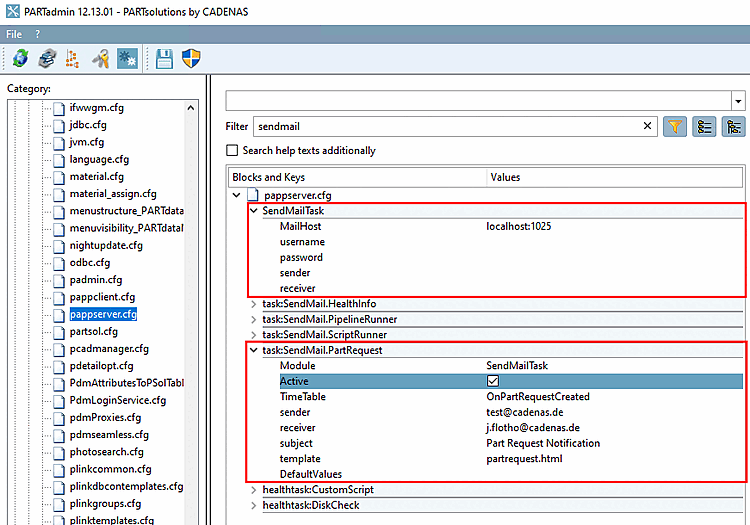
Wear the address of the SMTP server in the configuration file
pappserver.cfg> blockSendMailTask> keyMailHost.In addition to the MailHost (server) key, a user name and password can also be configured - if necessary.[87]
Take in the configuration file
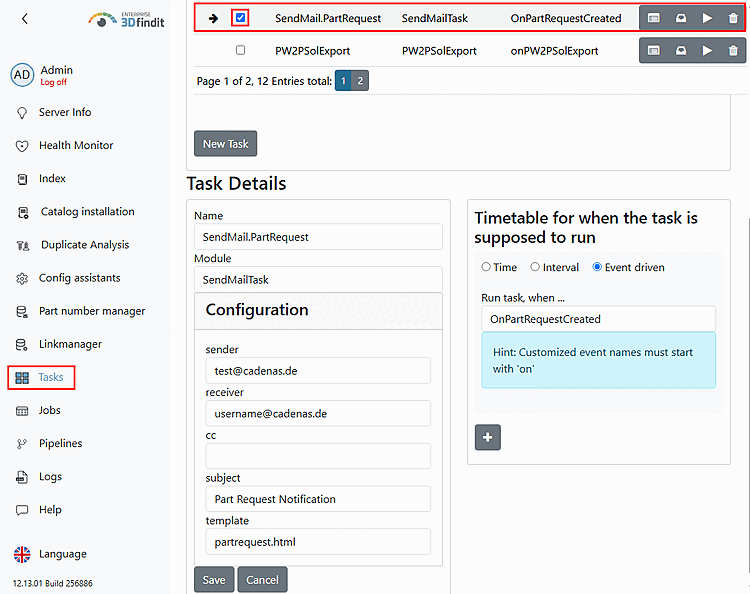
pappserver.cfg> blocktask:SendMail.PartRequestmore entries.The same settings can also be found in the dashboard. A task can also be created here with and . In any case, the task must be activated.
Optionally, execute the script as a test by clicking on the arrow.
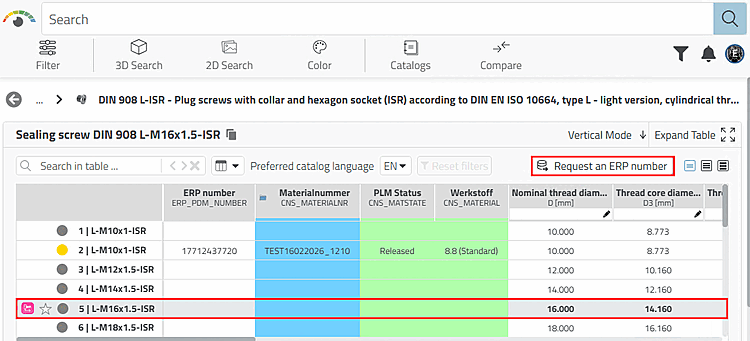
Execute a request via the Request to ERP number button.
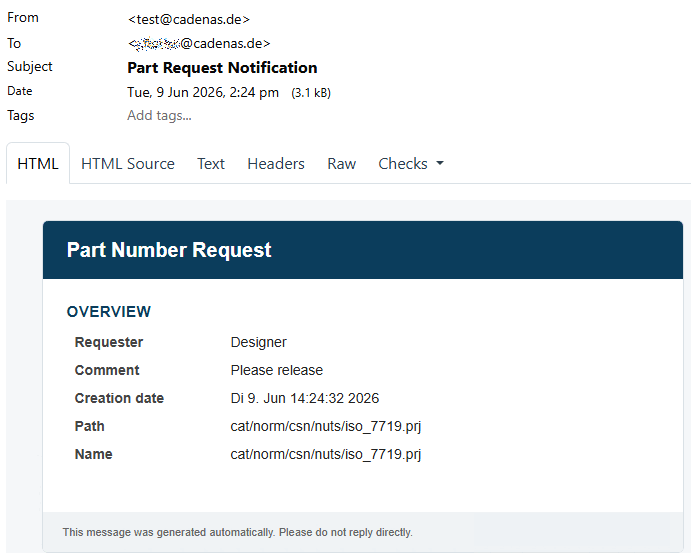
-> The e-mail notification is sent immediately.

[87] Examples where the SMTP mail module is used: Part Number Request Dashboard (when new requests are received), PLMsynchro (when processes fail), For Health Monitoring (when monitored processes reach a critical status), ReportsTask, ReportWatcher, RunScriptTask, SendMailTask