5.17.4.3. Start an cloud catalog update

Is for a Cloud Catalog when a new version is available, this will be displayed in the dashboard in the Link Manager . Cloud Catalogs are on a cloud icon in the link manager recognizable by the catalog folder.

  1. Open the Link Manager in the dashboard.

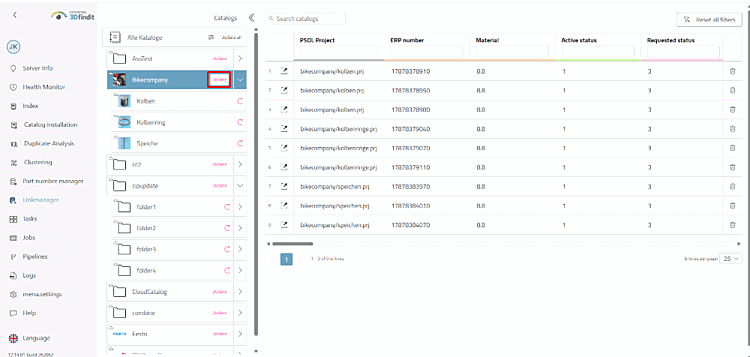
  2. Click " Update" next to the relevant catalog. The button appears as soon as a new version of the catalog is available on the cloud server.

    Link Manager > Cloud Catalogs with "Update" button

    Link Manager > Cloud Catalogs with "Update" button

  3. Please wait until the update is complete.

    -> The "Update " button is no longer displayed.

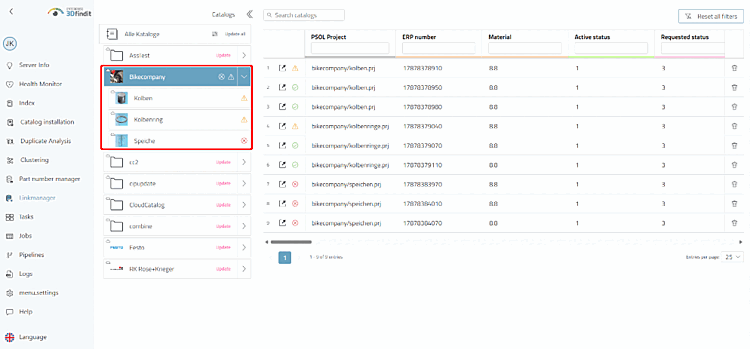
  4. Check the status symbols on the catalog: assignment found [Mapping found], assignment must be verified or [Mapping needs verification] product has not been . [Product not found]
    Link Manager > Status Icons After the Update

    Link Manager > Status Icons After the Update

[Note]Note

An update is only possible for the entire catalogue, not for individual projects. Therefore, the button is only available at the catalog level. However, each project is updated individually: After an update, some projects are already up to date and others are still for example, because their assignments must first be checked in the Update Manager [Update manager] . On on the levels below, a circle arrow icon indicates that an update is available. With Update all above the catalog list, update all Cloud catalogs for which an update is available.