
5.17.4.
Catalog Update with ERP Integration - Cloud Catalogs
Enable and Update (via Dashboard) 5.17.4.4. Cloud Catalogs
Update automatically |  |
| Prev | Next |
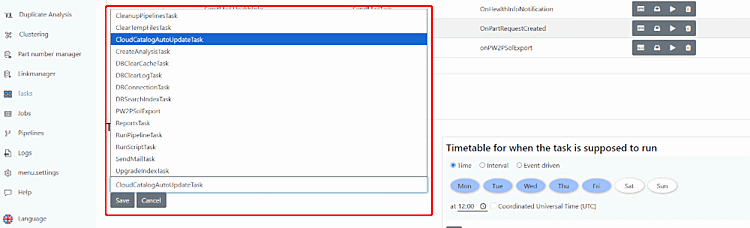
Instead of doing it manually, you can use to automatically update cloud catalogs via a task in the Dashboard. The task checks all locally copied projects from the cloud catalogs for new versions and performs the update. Afterward, check the mappings in the Update Manager [Update manager] ; see Section 5.17.4.5, “Check assignments in the Update Manager”. This applies even if all projects were updated without any problems: Only after you have confirmed the mappings will the rows be marked as “Verified.”
Email If manual assignment is required: You can choose to be notified via email when assignments need to be checked manually. This requires a configured SMTP server; see Section 5.23.8.2.5, “Send notifications by e-mail ”.
Under " Tasks," click " " to create another task using the SendMailTask module.
Enter the sender in the "sender" field and the recipients in the " receiver " field, e.g., the relevant administrators. Enter a subject in the "subject" field.
Select the " cloudcatalogmapping.html" template under " template."
Select Event driven and enter in the Run task, when... the trigger
onCloudCatalogNeedsMappingof hand. He is not on the shortlist.