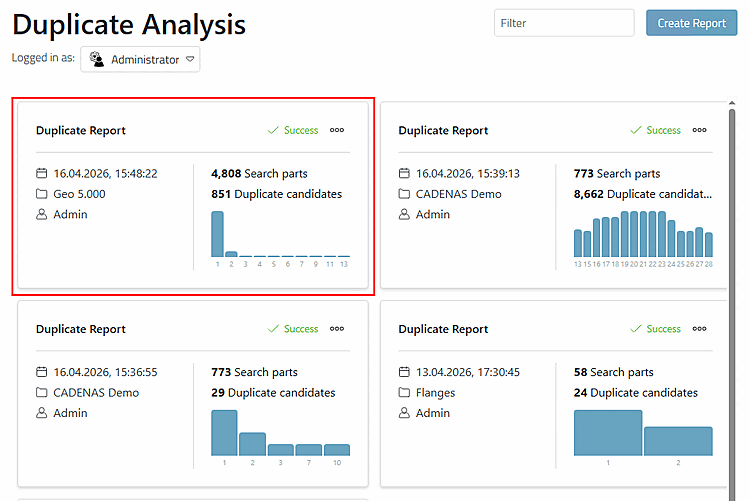
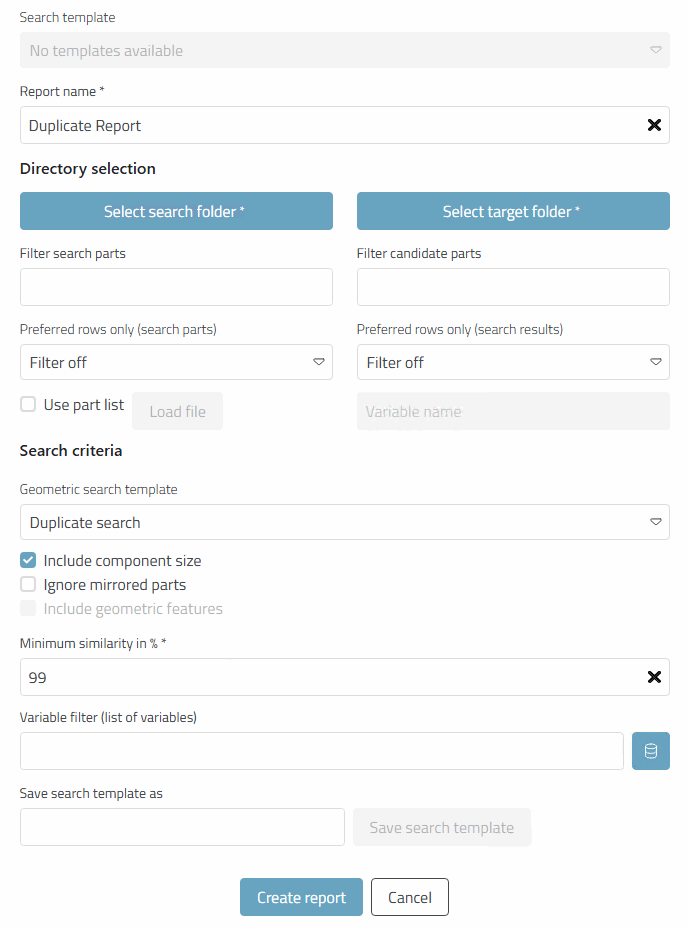
Fill in the individual points:
Search template: If templates are available, you can select them and the corresponding settings will be set automatically.
Templates can be deleted by clicking on the recycle bin icon.
Report name: Assign a free name for the report, otherwise the default name "Duplicate Report" is used. You can use the assigned name to differentiate your generated reports.
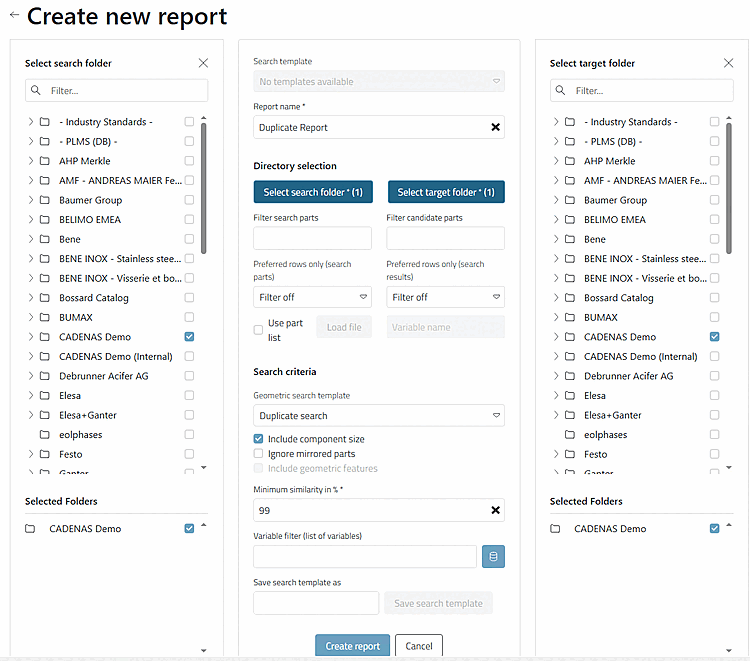
Click on the two buttons and .
-> The catalog index is displayed to the left and right of the settings page.
Filter search parts / Filter candidate parts: Enter an optional term in each case.
-> A full text search is carried out and the parts selection is filtered accordingly.
Preferred rows only (search parts) / Preferred rows only (search results): Optionally use the preferred rows filter. This is role-dependent. For example, select "ERP number available" in the list field to only take such rows into account.
In this example, only rows that contain the value "steel" or "copper" in the "MAT_NAME" column would be taken into account for the evaluation.
Include geometric features: If this option is activated, geometric features such as different hole patterns are included. This means that parts also differ in this respect and no longer appear as duplicate candidates in the results.
Variable filter: All ERP variables are displayed in the list field. For example, you could only include lines where the "ACTIVE_STATE" variable has the value "released".
There may be parts within a parts family with the same geometry but different properties such as color, for example.
Save search template as: Enter a desired name. The template will then be available later under Search template (see above).

![[Note]](https://webapi.partcommunity.com/service/help/latest/pages/en/partsolutions_user/doc/images/note.png)
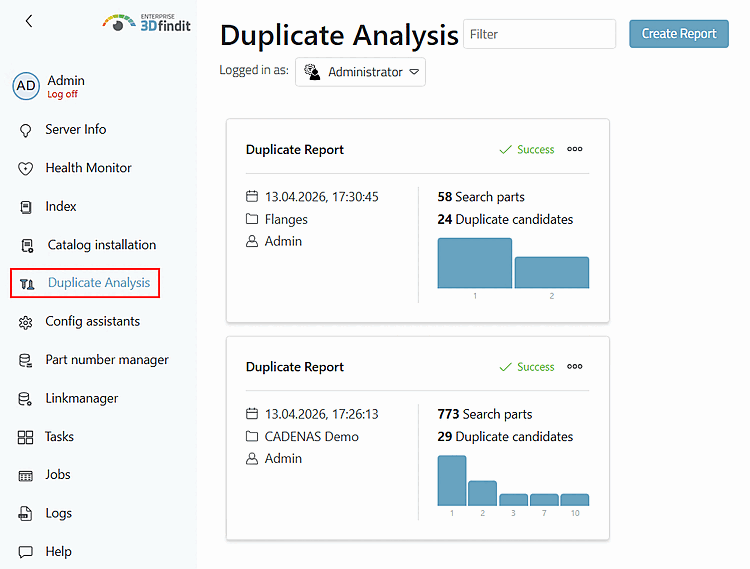
-> You will be redirected back to the report overview.