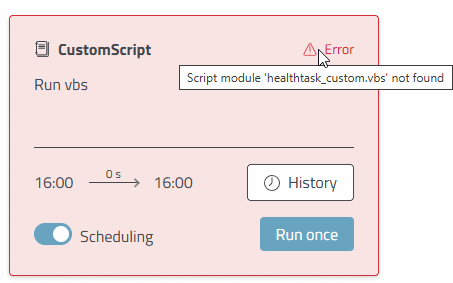
The individual tiles follow a color scheme:
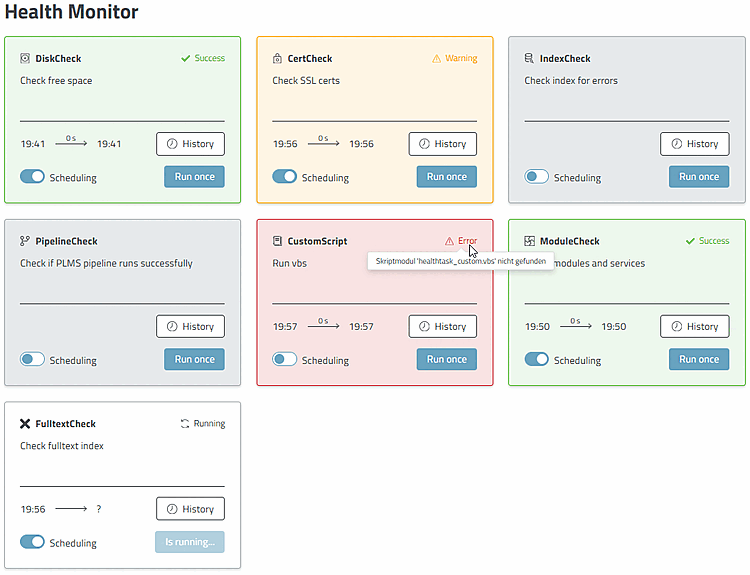
Gray = The health check task has not yet been executed - neither according to the schedule nor started manually.
Green = The last run of the health check task was successful, no errors were found.
Orange = The last run of the health check task resulted in a warning.
Red = The last run of the health check task detected an error.
Each tile has the same structure:
The status can be seen at the top right. If there is a warning or an error, you can move the mouse pointer over the status to see the message.
The time display shows the start and end of the process and how much time was required.
You can activate the schedule [ Scheduling ], or . The configuration of the interval takes place in the
pappserver.cfgfile.You can the task manually using the button. Please note that manually started tasks can take slightly longer than automated tasks, as the manual process only starts once every 60 seconds.
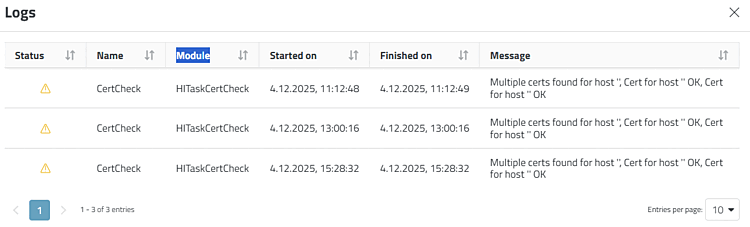
After a server restart, the last results of the task are loaded from the database and displayed in the Health Monitor. This is particularly helpful for tasks that only run rarely or on demand.