

- 1.5.4.1. Connected servers " dialog area
- 1.5.4.2. Configure freshly installed license server
- 1.5.4.3. Licenses " tab page (license server)
- 1.5.4.4. Tabbed page "Security"
- 1.5.4.5. Named User " ("Dynamic User") tab page
- 1.5.4.6. Tabbed page "Borrowing"
- 1.5.4.7. Tabbed page "Access restrictions"
- 1.5.4.8. Tabbed page "Events"
- 1.5.4.9. Tabbed page "Protocol"
- 1.5.4.10. Tabbed page "Status"
- 1.5.4.11. Tabbed page "Statistics"
- 1.5.4.12. Tabbed page "Apply for licenses online"
- 1.5.4.13. Notes on compatibility of different versions
![[Note]](https://webapi.partcommunity.com/service/help/latest/pages/en/partwarehouse/doc/images/note.png) | Note |
|---|---|
In order to be able to use licenses from a license server, a respective service has to be installed on a computer (license server) in the network. Also one or two other license servers could be installed as backup. Make sure that you already have a license file where all needed servers are entered. Detailed information on installing a license server can be found under Chapter 7, License server in Installation. | |
Start the license server license management by clicking the Start license server management... button in your installation (e.g. ENTERPRISE 3Dfindit) in PARTadmin -> License management [License administration] category.
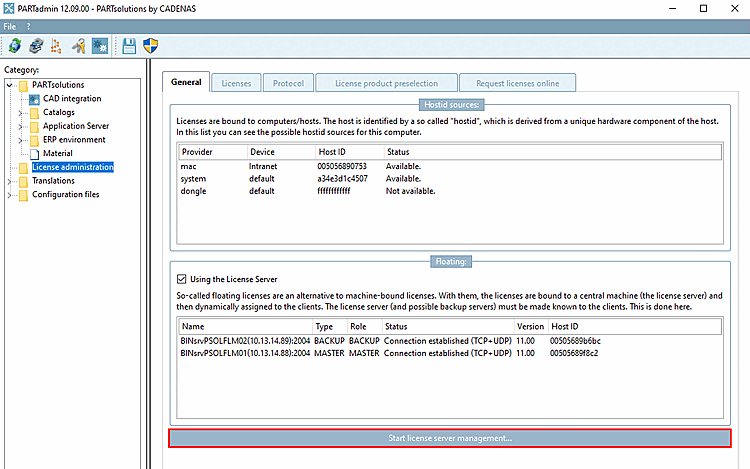
In this mode, you have access to all setting options. Detailed information on this can be found in this chapter.
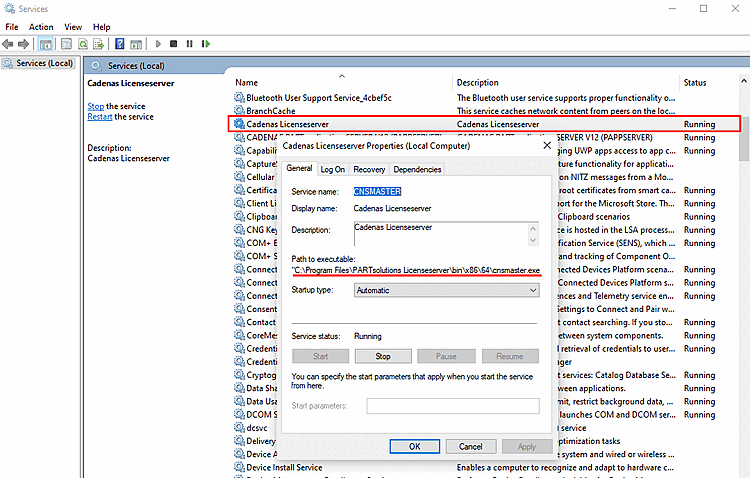
-> The license server administration is opened ( License server category) and the dialog box Establish connection with license server.... [Connecting to the License Server...]
Depending on whether a license server has already been configured or not, select one of the following options:
Transfer server from local configuration [Use server from client configuration]:
Configure the newly installed license server [Configure newly installed license servers]: See Section 1.5.4.2, “ Configure freshly installed license server ”.
-> The Establish connection with FLM server [Connect to FLM server...]... dialog box opens. You can find details on this at Section 1.5.4.1, “ Connected servers " dialog area ”