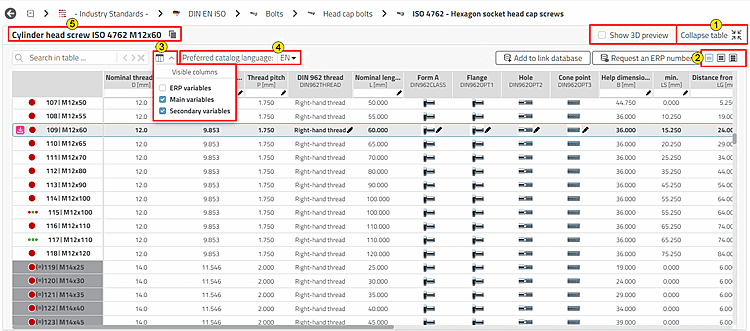
Especially if you want to view the table values in detail, and even more so with very large tables, you will benefit from a few help functions. Sometimes it is also useful to set the catalog language differently from the language of the user interface or copy the parts list designation to the clipboard.

|
Table
expand [Expand Table]
 / Table
collapse [Collapse table] / Table
collapse [Collapse table]

When unfolded, the table takes the available space. Use View 3D preview [Show 3D preview] when you want to add them sporadically. The option is only available for expanded. |

|
Vary the line height if necessary. If you hold down the Ctrl key, you can change the line height using the mouse wheel. |

|
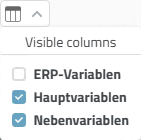
Restrict the column types displayed if required. The settings option allows you to individually hide ERP variables and/or main variables [Main variables] and/or secondary variables [Secondary variables]:
|

|
Table
expand [Expand Table]
/ Table
collapse [Collapse table]
When unfolded, the table takes the available space. Use View 3D preview [Show 3D preview] when you want to add them sporadically. The option is only available for expanded. |

|
BOM designation [BOM name]: Click on
the icon |
[a] Details on this can be found under Section 5.7.5.1.6, “ Columns to be displayed - plinkgroups.cfg -> Block [Role_name] -> Key "VARSUSED / VARSHIDDEN" ” in ENTERPRISE 3Dfindit (Professional) - Administration. | |