

You can use hotspots to link attachment points to external content so that important content on a component is easily recognizable and quickly accessible.
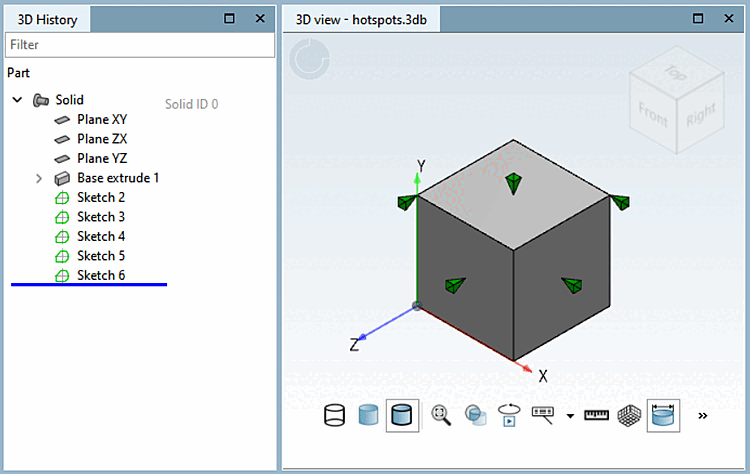
Create a component and add at least one connection point.
Here you will find a short description of how to insert connection points: Section 7.9.3.4, “ Shapes -> Points ”.
You will also find further information in the chapter Section 5.12.10, “ Classify standard parts for placement dialog ”.
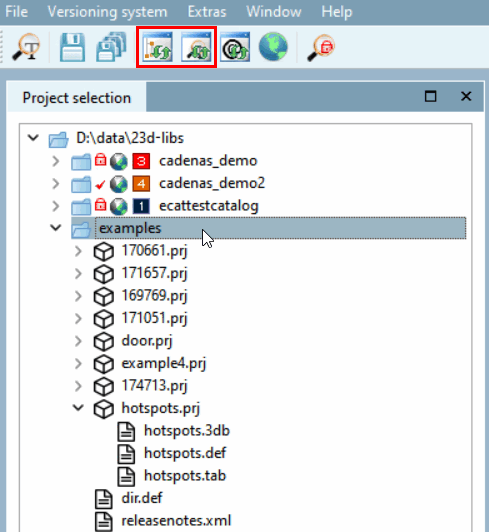
Select the directory in the structure and update the index [Index] and the search index [Search index] in PARTproject via the two buttons.
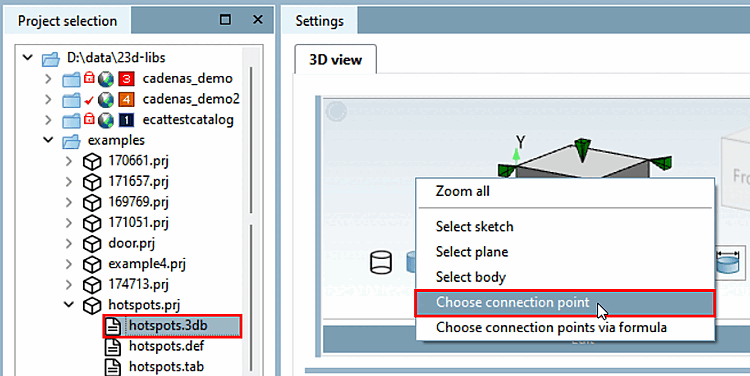
Click in the project selection [Project selection] to the
*.3dbfile.Right-click in the 3D view and select Select connection point [Choose connection point] in the context menu. Alternatively, you can also select the connection point by clicking on it.
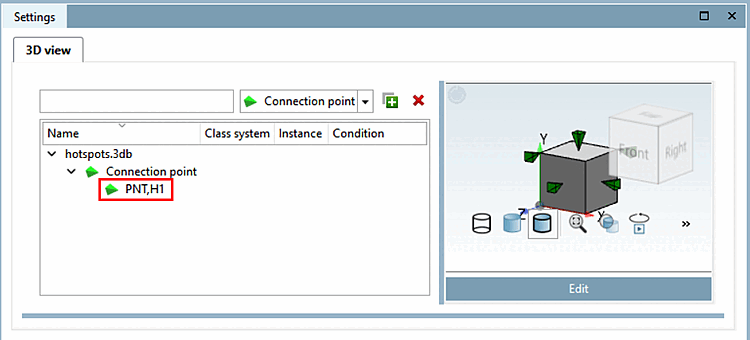
In addition to the 3D view, the fields for the connection points and classifications are now also displayed.
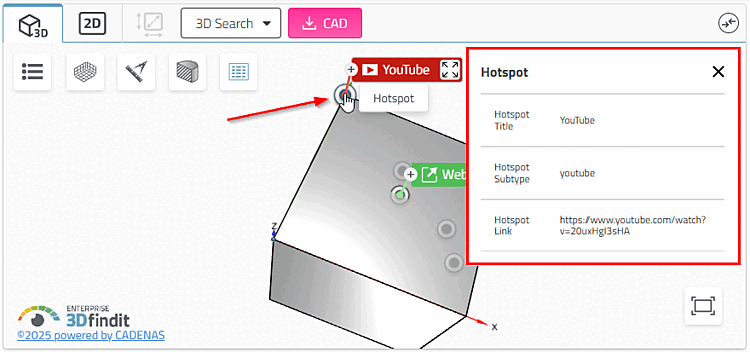
The hotspot has been successfully added. The entries for Hotspot Title, Hotspot Link and Hotspot Subtype must now be set.
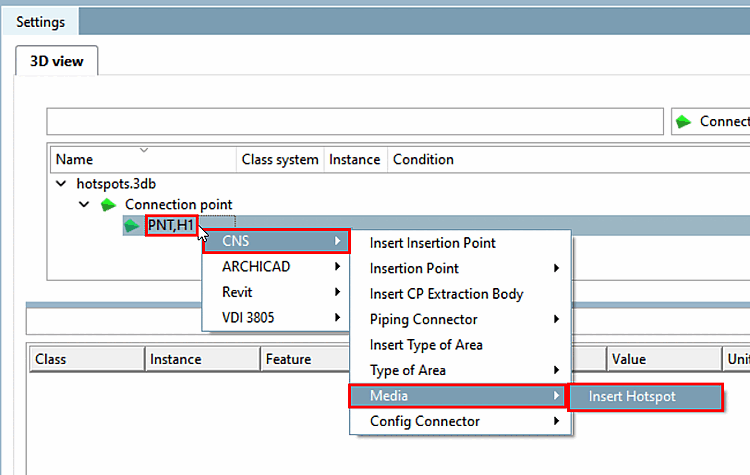
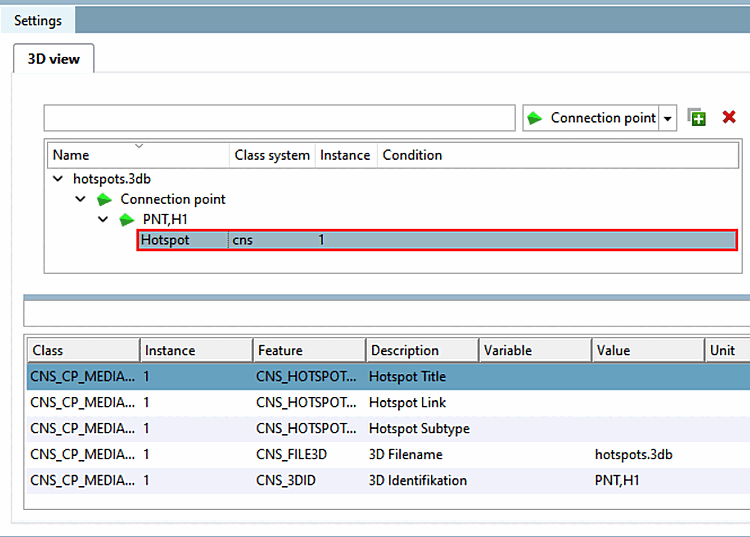
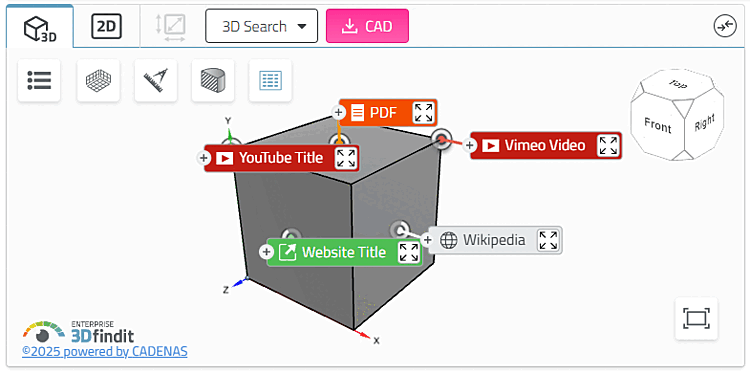
You can choose between five different types: PDF, website, Wikipedia, YouTube and Vimeo.
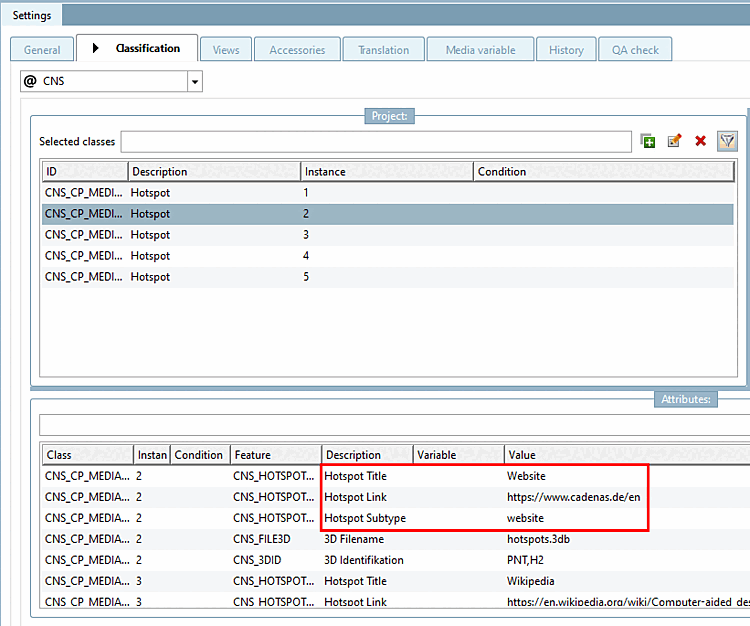
The following information is required for the specification:
Enter a title of your choice. It is displayed both when the info box is collapsed and when it is expanded.
Enter the
full link of the web address, for example https://www.3dfindit.com.
![[Caution]](https://webapi.partcommunity.com/service/help/latest/pages/en/ecatalogsolutions/doc/images/caution.png) | Caution |
|---|---|
The input field is a free text field! You must make sure that the subtype is only entered in lower case letters and in English. So: pdf, website, wikipedia, youtube oder vimeo | |
The infox box can be collapsed or expanded - both by left-clicking on the header. The header is colored depending on the subtype and shows the corresponding icon, the hotspot title and the icon for collapsing/expanding. Left-click on the header to open the preview. There you also have the option of opening what is shown in a new window.
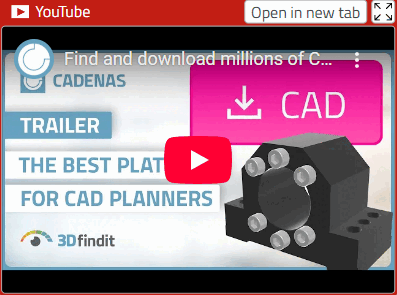
You can attach any number of hotspots to your component. Several hotspots can be opened simultaneously in the 3D view.
You can click directly on an attachment point to see the specifications in a small info window.
As it is NOT possible to attach connection points to imported STEP files, an alternative to the procedure described here is to create a hotspot via a face attribute. Please read the chapter Section 7.7.1.4.4, “The area attributes in detail”.