5.12.4.3.
Create class system / Change current class system... (Basic settings)
5.12.4.3.3. Tabbed page "Display"
|  |
| Prev | Next |
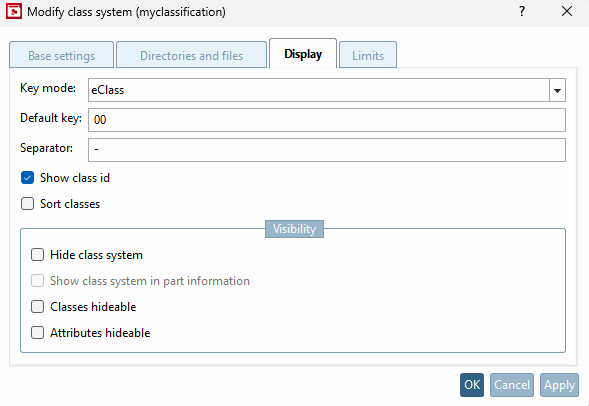
In the list field select the desired key mode.
If Show class ID [Show class id] is activated, the IDs are also displayed in the Edit class system dialog.
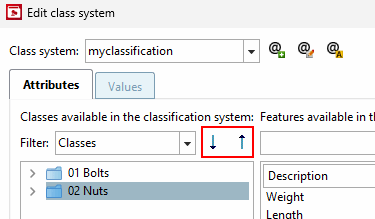
If the checkbox is activated, manual sorting is activated above the class selection.
Class system hide [Hide class system]: Class systems can be hidden. The settings for this are
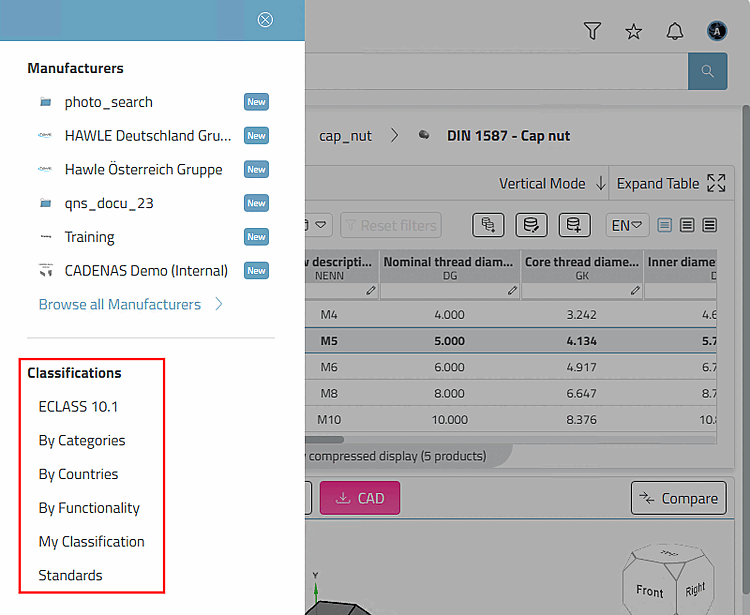
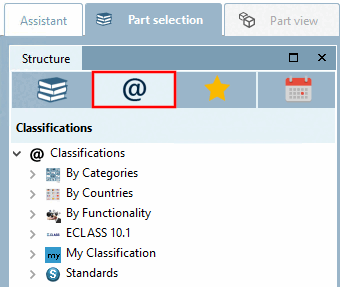
$CADENAS_DATA/datasetup/classsystem.cfgin the file . Hidden class systems are used in 3Dfindit and PARTdataManager is no longer available for selection.If the classification system is hidden, it is also hidden in the partial information by default. This can be changed using the Show class system in part information checkbox.
Show class system in part information: See Section 5.12.18.2, “Parts information ”.
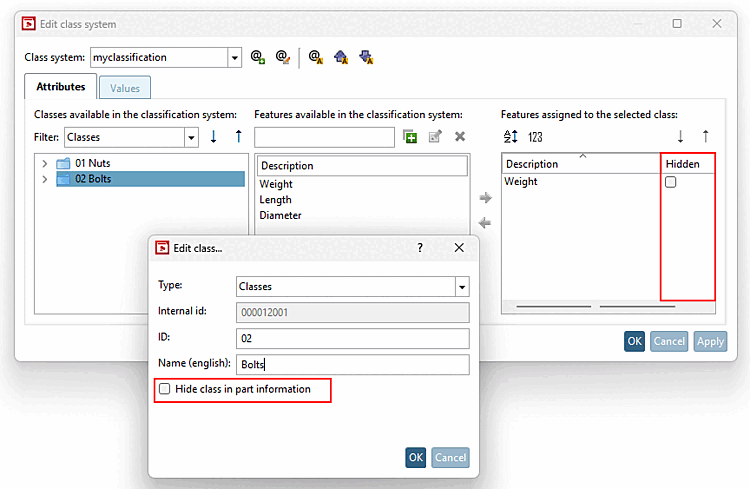
Classes can be hidden [Classes hideable]: With the two setting options Hide classes [Classes hideable] and Hide features [Attributes hideable], you can also hide individual elements. If these settings are active, an additional column with the checkbox for hiding is displayed in the features and in the dialog box Edit class... dialog box with another checkbox for hiding.
Linked variables that are hidden are
$CADENAS_DATA/datasetup/classsystem/"class
            system name"/"class system name"_ml_"language".csv
in the file .
![[Note]](https://webapi.partcommunity.com/service/help/latest/pages/en/ecatalogsolutions/doc/images/note.png)
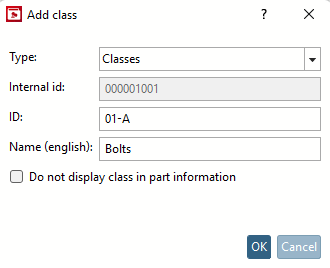
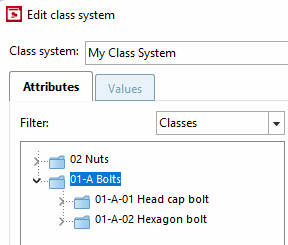
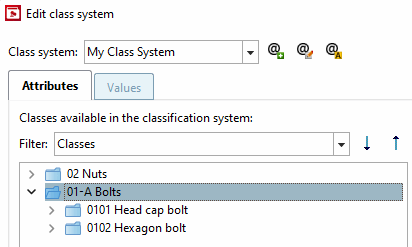
!["Show class ID [Show class id]" deactivated/activated](https://webapi.partcommunity.com/service/help/latest/pages/en/ecatalogsolutions/doc/resources/img/img_fe82d21ebb8e4a2fa8daae1f76d516cd.png)