5.12.4.3.
Create class system / Change current class system... (Basic settings)
5.12.4.3.2. Tabbed page "Directories and files" |  |
| Prev | Next |
!["Directories and files [Files and folders] " tab page](https://webapi.partcommunity.com/service/help/latest/pages/en/ecatalogsolutions/doc/resources/img/img_24804d8f61e84cfda2eff34dd578a15d.png)
Specify the large preview bitmap for 3Dfindit / PARTdataManager (recommended size: 80x80 pixels):
The default path is: "$CADENAS_DATA/datasetup/classsystem/...".
Specify the small preview bitmap for 3Dfindit / PARTdataManager (recommended size: 16x16 pixels):
The default path is: "$CADENAS_DATA/ datasetup/classsystem/...".
Thumbnails of the classes [Thumbnails of classes]:
Enter the default path to the classification preview directory here using Browse (or copy & paste a UNC path) to enter the default path to the directory of the classification preview images:
The default path is: "$CADENAS_DATA/ datasetup/ classsystem/ my_class/ preview/ myclassification".
If you do not want to insert your own preview images, you can optionally generate the classification preview images from the directory or project images.
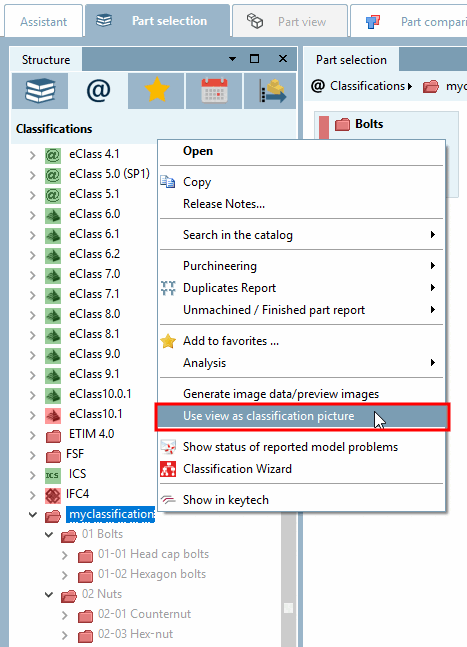
In Developer mode (DEV), you will find the command Use view as classification image under PARTdataManager -> Classes tab page in the context menu of a directory or an individual class, you will find the Use view as classification image [Use view as classification picture] command.
See also Section 5.8.2.1.19.4, “ Generate image data/preview images in batch run ”.
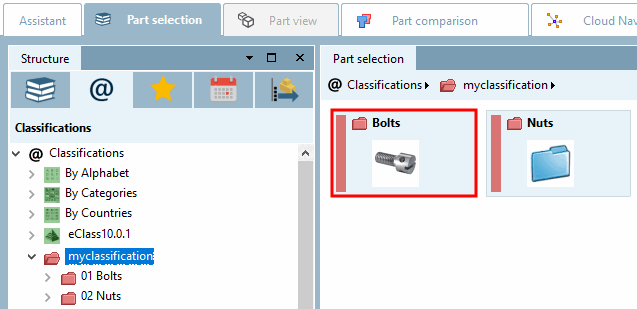
Now the respective classification preview images are displayed.


![[Note]](https://webapi.partcommunity.com/service/help/latest/pages/en/ecatalogsolutions/doc/images/note.png)