

The start interface is the catalog selection.
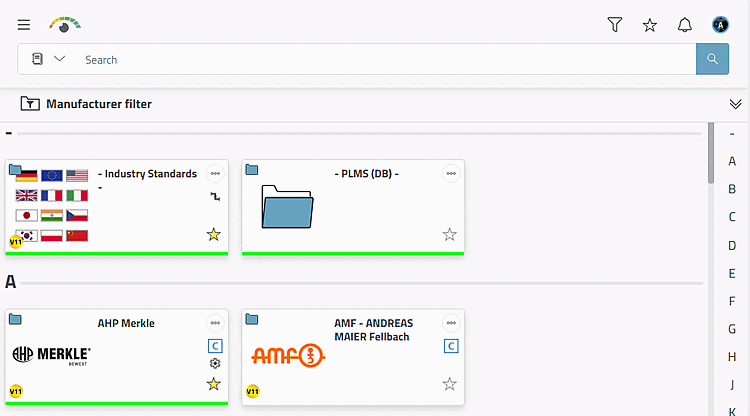
With
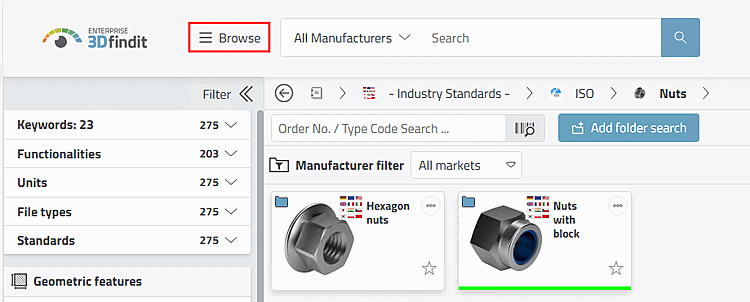
Click on  Browse or on
icon alone in a zoomed-out view and then click the button
you get
at any time in the catalogue selection.
Browse or on
icon alone in a zoomed-out view and then click the button
you get
at any time in the catalogue selection.
![Search all manufacturers [Browse all Manufacturers]](https://webapi.partcommunity.com/service/help/latest/pages/en/partsolutions_user/doc/resources/img/img_70e93e1300d04743adfcb6c0b6c7e28f.png)
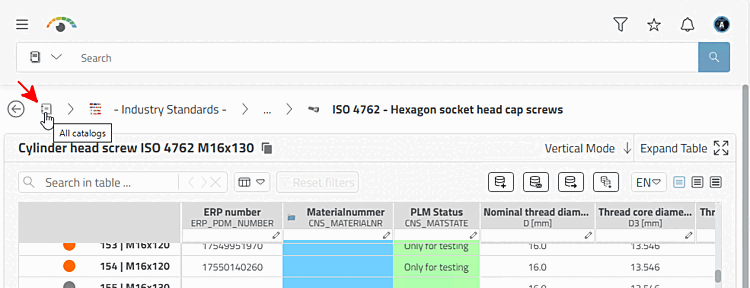
 By clicking on the All Catalogs [All catalogs] icon in the line of the
navigation path also takes you to the catalog view.
By clicking on the All Catalogs [All catalogs] icon in the line of the
navigation path also takes you to the catalog view.
Below you will find an overview and explanations of the elements that are identical in every view. Follow the links to get to the corresponding chapter.
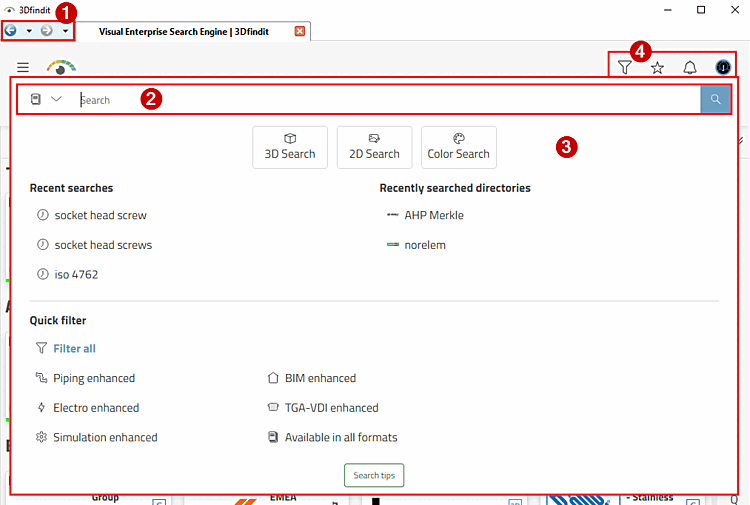
1. forward and back navigation
2.
 The search bar: Input field for full-text search and
Display area for selected search methods and filters
The search bar: Input field for full-text search and
Display area for selected search methods and filters
3. search methods and filters: Click in the search bar to open a dialog area:
3D search [3D Search]: The geometric search also includes the partial search and the search for geometric features.
2D search [2D Search]: Create a simple sketch yourself or upload a photo.
Color search [Color Search]: Select one or more colors.
Catalogs: Select a catalog in the first step.
Use filters to narrow down the component search:
After clicking on the Filter icon in the pop-up window that opens, make a preselection and then apply specific category filters in the Filter dialog area.
4.
 preferred rows
on/off,
preferred rows
on/off,  favorites,
 notifications and login menu.
The login menu contains the following sub-items:
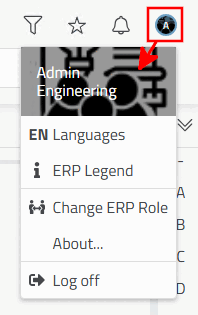
Log out [Log off]: The "Log in" dialog opens.
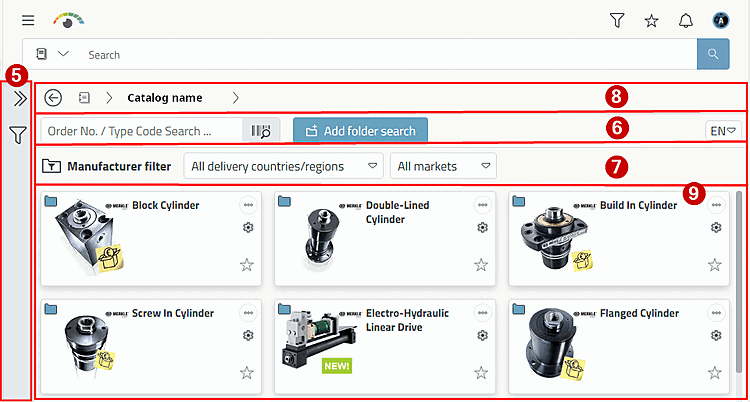
As soon as you have entered a search term, used the filter or opened a catalog, the Filter dialog area is also displayed on the left.
6. further search options and catalog language:
7. manufacturer filter [Manufacturer filter]: filter by supplier countries and markets
9. directories within the displayed catalog (part)
As soon as you have specified a product, you will be taken to the table and 3D view of the component.
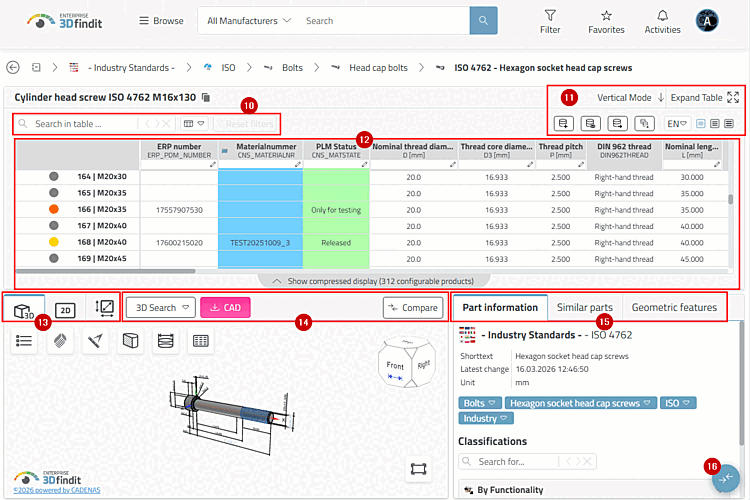
10. tables search field, displayed columns (ERP variables, main variables, secondary variables)
11. ERP / database functions | table help functions | preferred catalog language
12. table data for the individual product
13. 3D view, 2D derivations [2D derivation preview] and technical views [Technical views]
14. 3D search, CAD formats
download, export,  product for sale
Add to Compare
product for sale
Add to Compare
15. similar parts [Similar parts] | part information [Part information] | geometric features [Geometric features]