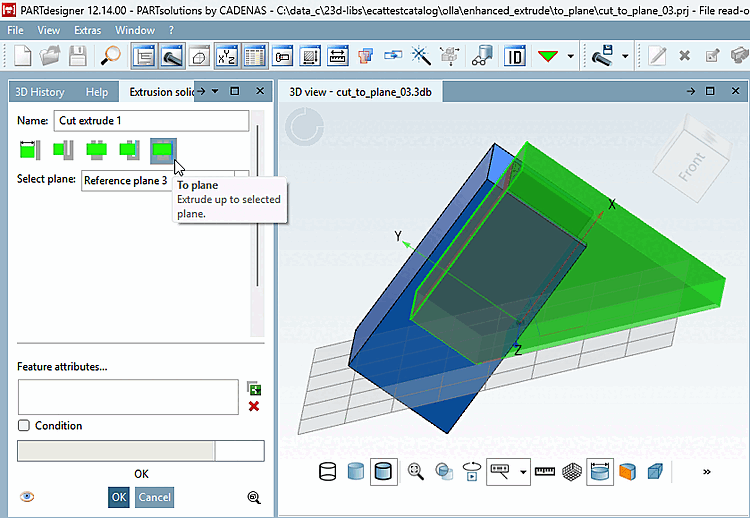
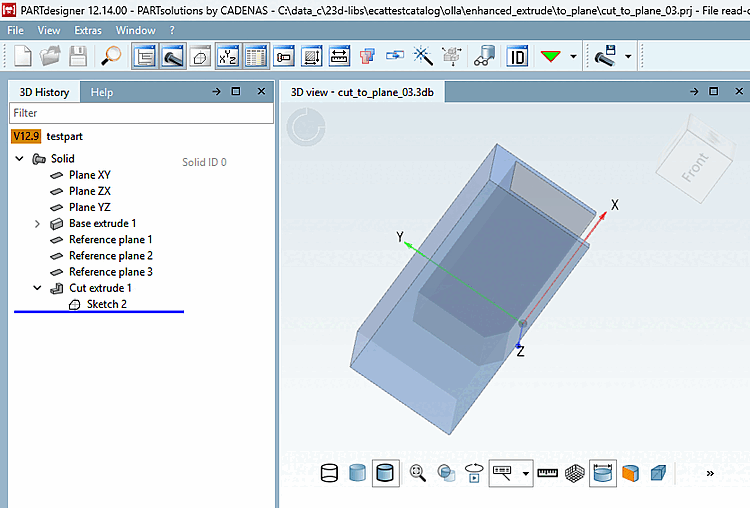
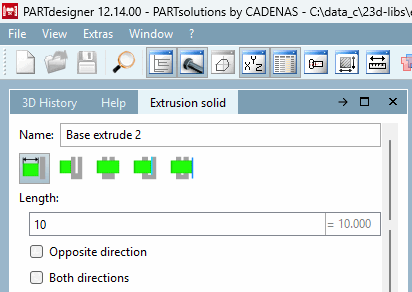
The Enhanced Extrude feature extends the existing extrusion function (which previously only allowed for length specification) in PARTdesigner. The methods are accessible via additional buttons in the Extrusion Body [Extrusion solid] docking window .
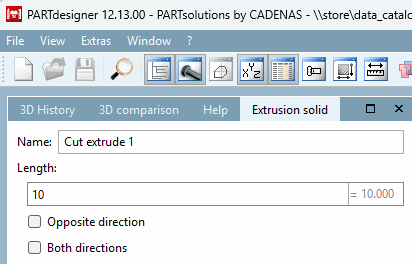
Starting with version 12.9, the feature was available only for testing purposes, and by default, no buttons were displayed (since there was only one "Length" option). Now, with version 12.14, the advanced extrude methods have been officially released.
![The figure shows an example of an extrude using the "To First [To first]" method.](https://webapi.partcommunity.com/service/help/latest/pages/en/partwarehouse/doc/resources/img/img_227b1754b4f249b19dd32c38e86b3fd8.png)
The four methods are explained below.
Extrude until the first face is fully filled . [Extrude up to the first fully hit surface.]
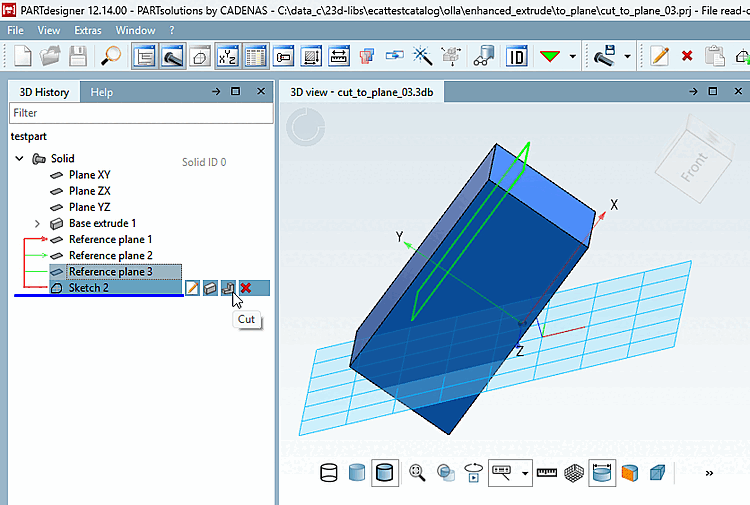
The sketch is extruded normally from the sketch plane until it first fully intersects connected faces.
The extruded sketch must fully intersect a face; otherwise, an error will appear.
If the sketch only partially intersects a face, the extrusion continues until a face is fully intersected for the first time.
The selected area may consist of multiple areas, but these must be contiguous (adjacent areas).
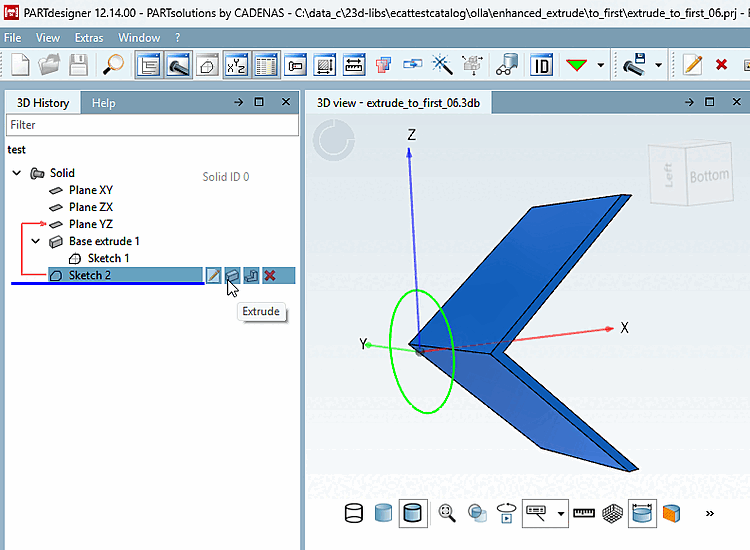
![Using the "Until First [To first]" method, connected areas are also included.](https://webapi.partcommunity.com/service/help/latest/pages/en/partwarehouse/doc/resources/img/img_958b427d5bfd4e4db39d5a27874ec381.png)
Extrude to the end of the body. Only cut. [Extrude to the end of the body. Cut only.]
The Method " Through All [Through all] " is only allowed for Cut-Extrude, but without any restrictions.
Cut extruded in both directions:
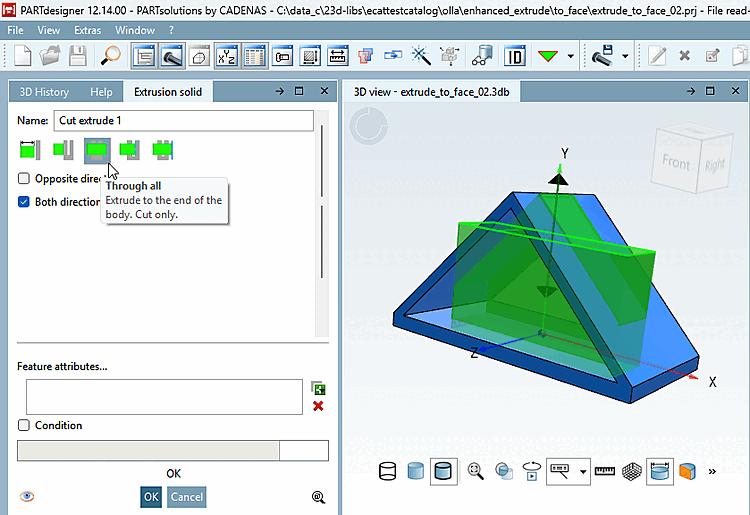
![Cut in both directions using the "Through all [Through all]" method](https://webapi.partcommunity.com/service/help/latest/pages/en/partwarehouse/doc/resources/img/img_d8b00df50a944ea6a9a56534415ccf56.png)
Compare this to a similar result using the " Bis Area [To face]" method.
Extrude up to the selected area . [Extrude up to the selected face.]
The Method "Extrude to Face" [To face] extrudes a sketch up to a selected face. Unlike the "Extrude to First" [To first] method, only a single face is allowed (no adjacent or contiguous faces).
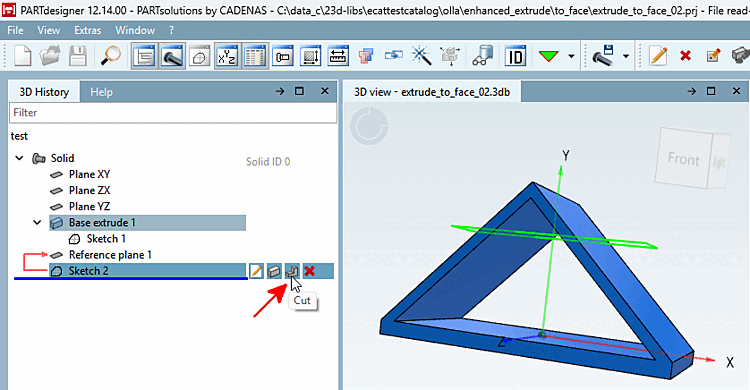
Select "Extrude " or " Cut" on a sketch.
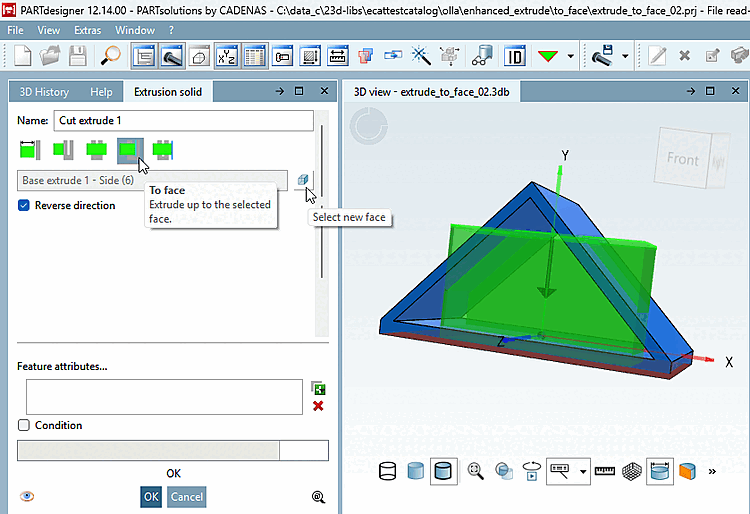
Select the "To Area [To face]" method.
Now you must select a target area. You can select it while "Select New Area" [Select new face] is enabled. The first time you open " To Area [To face]," this option is automatically enabled.
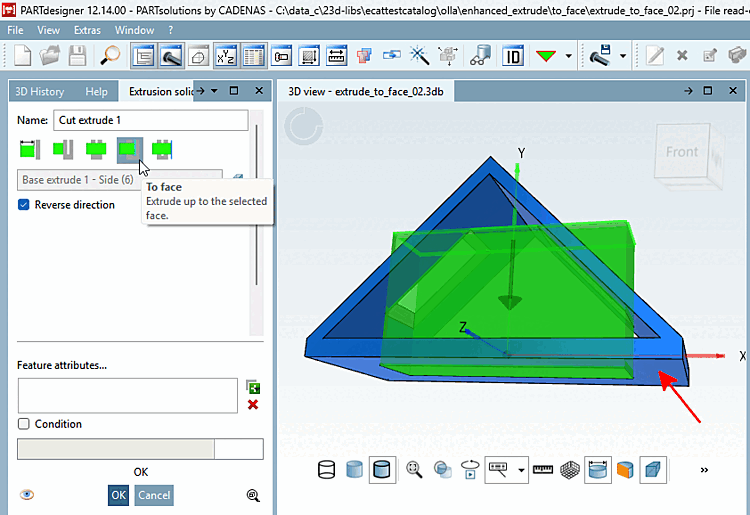
The "New Face" [Select new face] button is automatically disabled. If you want to select [Select new face] a different face, enable this button again and then select a different face in the 3D pane.
-> In this example, the lower surface was selected.
-> You can already see in the preview that the cut extends all the way to the bottom surface.
![[Note]](https://webapi.partcommunity.com/service/help/latest/pages/en/partwarehouse/doc/images/note.png)
Note To some extent, the various methods overlap. You can also achieve this result using the "Through All [Through all] " method. See above.