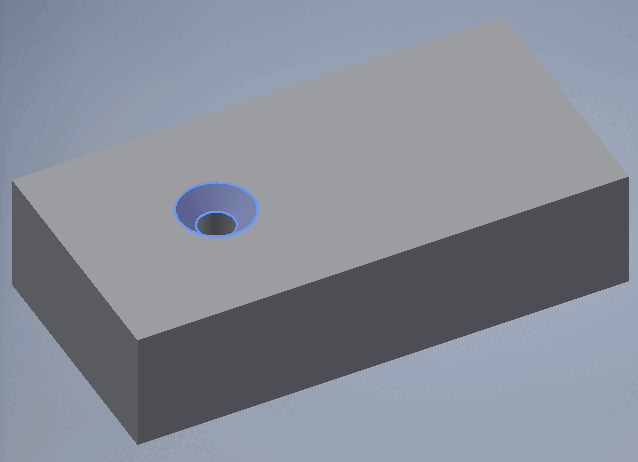
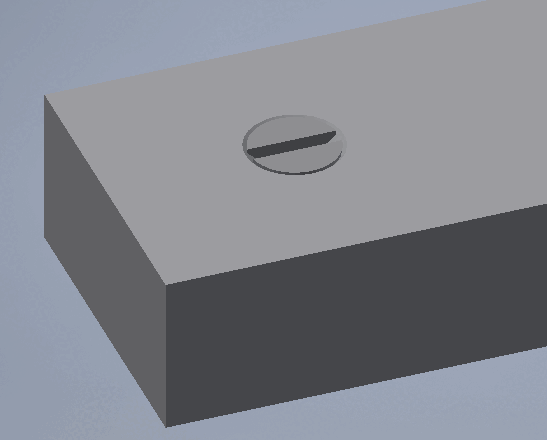
1.6.1.
Insert from the standard and purchased parts library via "PARTdataManager" 1.6.1.4.
"Surfaces in contact "
|  |
| Prev | Next |
![[Note]](https://webapi.partcommunity.com/service/help/latest/pages/en/partwarehouse/doc/images/note.png)

As soon as
In PARTdataManager, select the
Transfer to CAD [Export to CAD]
 , the view switches to CAD and the
The 3Dfindit placement dialog opens.
, the view switches to CAD and the
The 3Dfindit placement dialog opens.
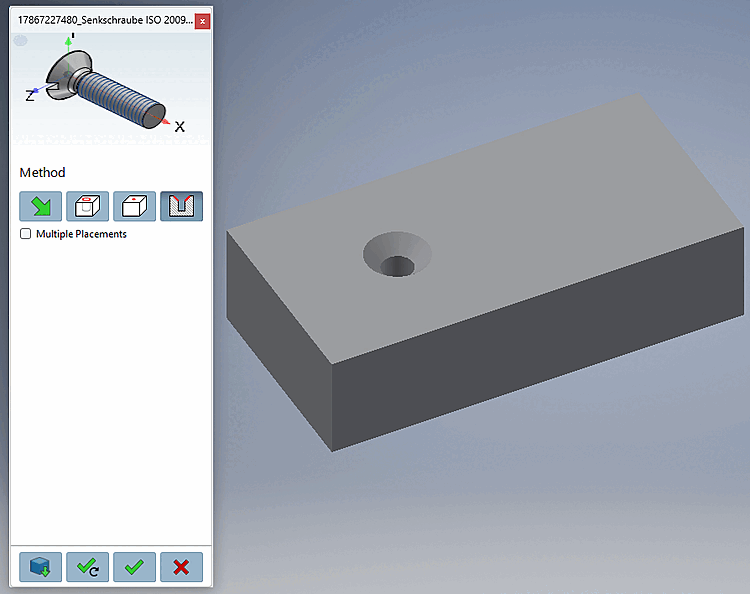
Select an area that is to coincide with the selected placement area [Select coincident placement face].
Click on Place once
 or Place multiple times [Place multiple]
 .
.Optionally perform other placements or close placement dialog

Open: The model is opened in a separate CAD window.
Place multiple times [Place multiple] (and leave dialog open)
Place once (and close dialog) 
Close dialog (without placement)