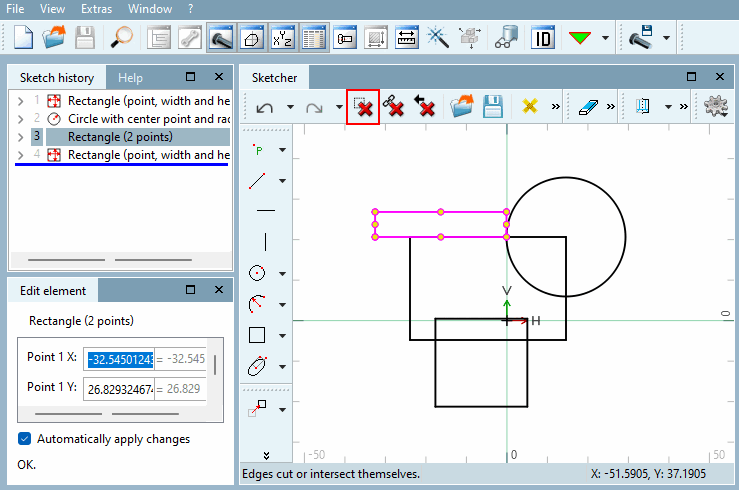
 Selected Step
delete [Delete selected step] removes any step from the sketch and
of history.
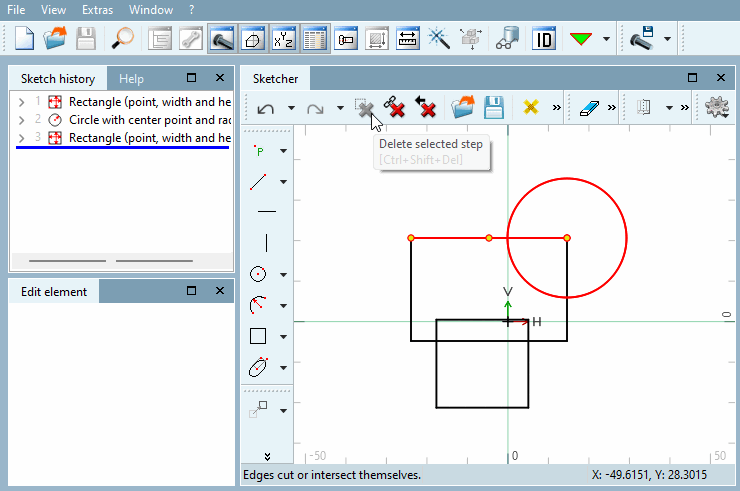
Selected Step
delete [Delete selected step] removes any step from the sketch and
of history.
![[Note]](https://webapi.partcommunity.com/service/help/latest/pages/en/ecatalogsolutions/doc/images/note.png) | Note |
|---|---|
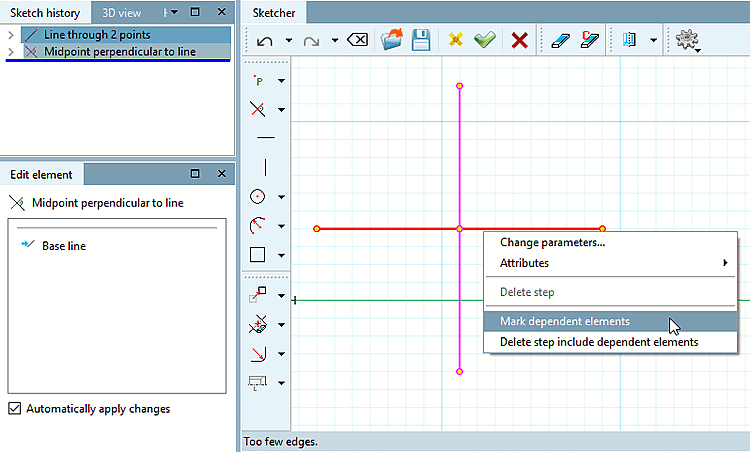
If the button is grayed out, this indicates a step with dependent elements. These can only be deleted together. For more information, see Section 7.9.3.3.1.2, “ Delete the selected step with its dependent elements Delete ”. You also have the option to display the dependent drawing elements as cosmetic elements once they are selected. Select the base element with the mouse and click "Select Dependent Elements." [Mark dependent elements] -> The design-related interdependent elements are then displayed in pink.
| |
| ||||
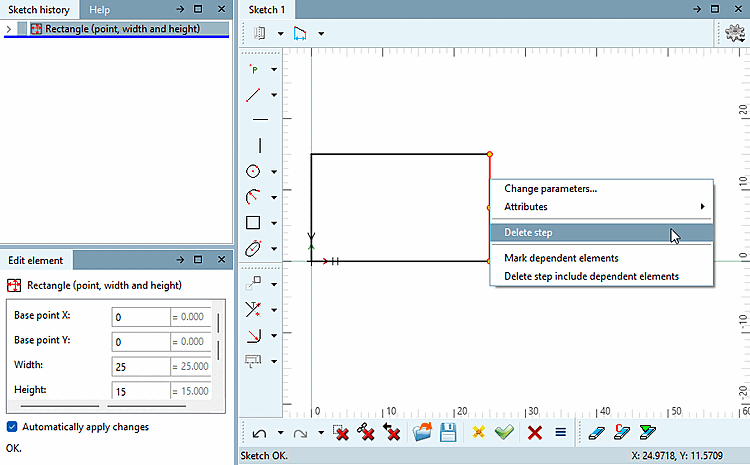


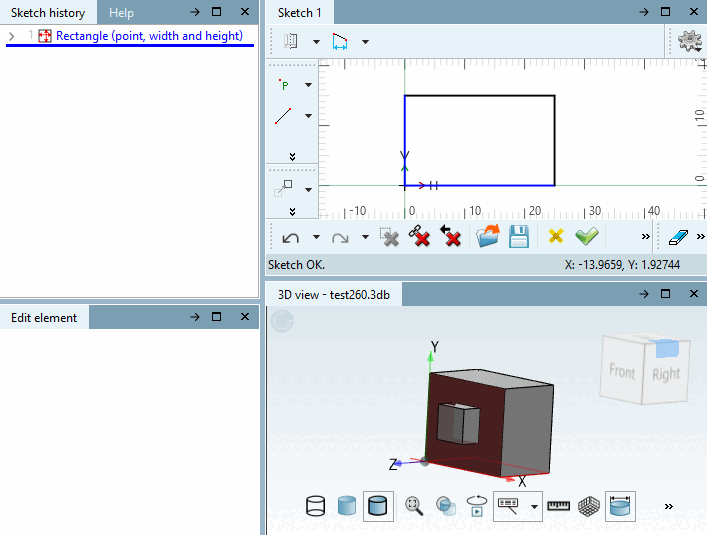
In the Sketcher, click on the element (multiple selection also possible) that you want to remove.
Click on Delete selected step.
Alternatively, you can right-click on the selected steps in the sketch history [Sketch history] to open the context menu and click on Delete step.
→ The selected elements are deleted from the history and the sketch.